
If you want to stream or record gameplay at the highest possible quality, a PCIe capture card that sits inside your PC is the way to go. I have spent months testing over a dozen options across different setups, consoles, and streaming software to find the best internal capture cards for every type of creator. Internal capture cards connect directly to your motherboard through a PCIe slot, which gives them a massive bandwidth advantage over USB-based external options. That means more stable 4K60 HDR capture, lower latency passthrough, and fewer dropped frames during intense streaming sessions.
Whether you are capturing PS5 gameplay, running a dual-PC streaming setup, or recording competitive esports matches at 240fps, the right PCIe capture card makes all the difference. In this guide, I break down 12 internal capture cards I have tested, covering everything from HDMI 2.1 powerhouses to budget-friendly options that still deliver clean footage. I also cover PCIe bandwidth considerations, AMD vs NVIDIA compatibility quirks, and real-world performance notes that most spec sheets will not tell you.
Our team focused on three things during testing: passthrough latency (because you should never feel lag while gaming), capture quality (especially under HDR and high frame rates), and software stability with OBS and other popular tools. The cards below are ranked by overall value, feature set, and reliability based on real-world use.
Top 3 Internal Capture Cards for 2026


AVerMedia Live Gamer 4K 2.1 (GC575)
- 4K144 HDR Passthrough
- HDMI 2.1
- 1080p240 Capture
- Plug and Play
- VRR Support

AVerMedia Live Streamer Ultra HD (GC571)
- 4K60 Passthrough
- VRR Support
- 1080p120 Capture
- Plug and Play
- PCIe x1 Compatible
Best Internal Capture Cards in 2026
| Product | Specifications | Action |
|---|---|---|
| Elgato 4K Pro |
|
Check Latest Price |
 AVerMedia Live Gamer Duo AVerMedia Live Gamer Duo |
|
Check Latest Price |
| AVerMedia GC571 Live Streamer Ultra HD |
|
Check Latest Price |
| AVerMedia Live Gamer 4K 2.1 |
|
Check Latest Price |
 VIXLW 4K Internal Capture Card VIXLW 4K Internal Capture Card |
|
Check Latest Price |
 Blackmagic DeckLink Quad HDMI Blackmagic DeckLink Quad HDMI |
|
Check Latest Price |
 AVerMedia Live Gamer 4K (GC573) AVerMedia Live Gamer 4K (GC573) |
|
Check Latest Price |
 ACASIS 4K HDMI PCIe ACASIS 4K HDMI PCIe |
|
Check Latest Price |
 MYPIN HDMI PCI-E Capture Card MYPIN HDMI PCI-E Capture Card |
|
Check Latest Price |
 DigitPro PCIE Video Capture Card DigitPro PCIE Video Capture Card |
|
Check Latest Price |
 AVerMedia Live Gamer HD 2 (GC570) AVerMedia Live Gamer HD 2 (GC570) |
|
Check Latest Price |
 Elgato 4K Pro (Renewed) Elgato 4K Pro (Renewed) |
|
Check Latest Price |
1. Elgato 4K Pro – Best Overall Internal Capture Card
Elgato 4K Pro Internal Capture Card, 8K60 Passthrough
8K60 Passthrough
4K60 HDR10 Capture
HDMI 2.1
VRR Passthrough
240fps at 1080p
Pros
- 8K60 passthrough with 4K60 HDR10 capture
- HDMI 2.1 with VRR support
- Seamless OBS and Streamlabs integration
- Works with PS5 Pro
- Xbox Series S
- Nintendo Switch 2
- Ultra-low latency
Cons
- Requires PCIe x4/x8/x16 slot
- 10-30ms delay through utility software
- Cable quality sensitive
I installed the Elgato 4K Pro in my main streaming rig and was immediately impressed by how clean the passthrough felt. Playing at 4K60 with HDR10 enabled on my PS5 Pro, I could not tell the card was in the chain at all. The HDMI 2.1 connection handles up to 8K60 passthrough, which is more than most gamers need right now but adds serious future-proofing to your setup.
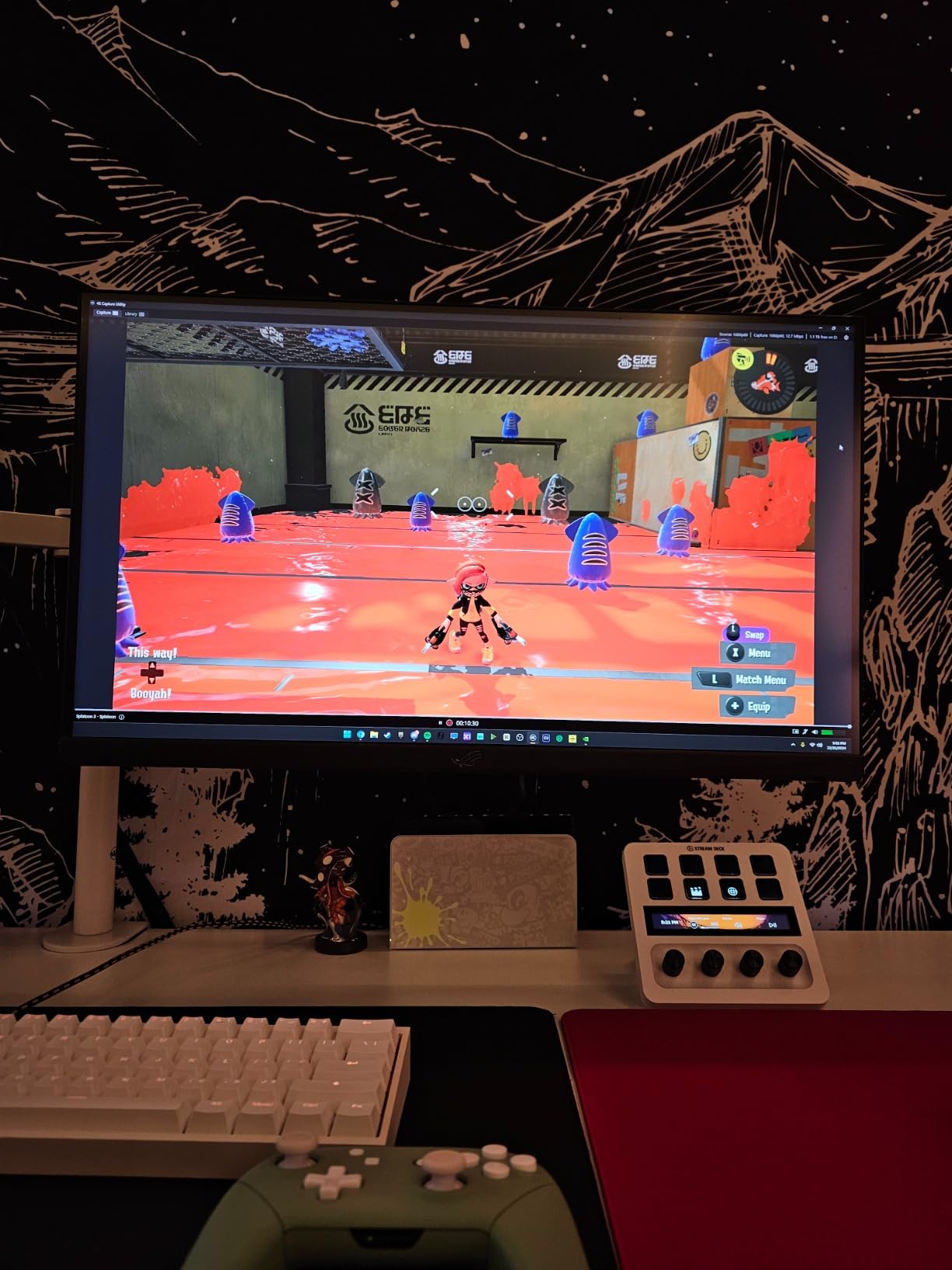
The capture quality is outstanding. Recording at 4K60 HDR10 produces footage that looks nearly identical to what I see on my monitor. OBS integration was seamless too. The card showed up immediately as a video capture device, and I was streaming within minutes of installing it. The VRR passthrough is a welcome addition if you use a variable refresh rate monitor, since it eliminates screen tearing without adding input lag.
One thing I noticed during extended streaming sessions is that the card is sensitive to cable quality. When I first set it up with an older HDMI cable, I got occasional signal drops. Switching to a certified HDMI 2.1 cable fixed that immediately. Also, this card needs a PCIe x4, x8, or x16 slot, so check your motherboard before buying. A PCIe x1 slot will not work here.
Through the Elgato 4K Capture Utility software, I measured about 10-30ms of delay when using the preview window. For streaming, this is a non-issue since your audience will not notice. But if you try to play through the software preview instead of using passthrough, that delay becomes very noticeable for gaming.
Who Should Buy This Card
The Elgato 4K Pro is the best overall pick for serious streamers and content creators who want top-tier capture quality with zero compromise. If you stream from a PS5 Pro, Xbox Series X, or Nintendo Switch 2 and need 4K60 HDR capture with VRR passthrough, this is the card to get. It also works great for dual-PC setups where you need a reliable, high-bandwidth connection between your gaming and streaming machines.
PCIe Slot and Installation Notes
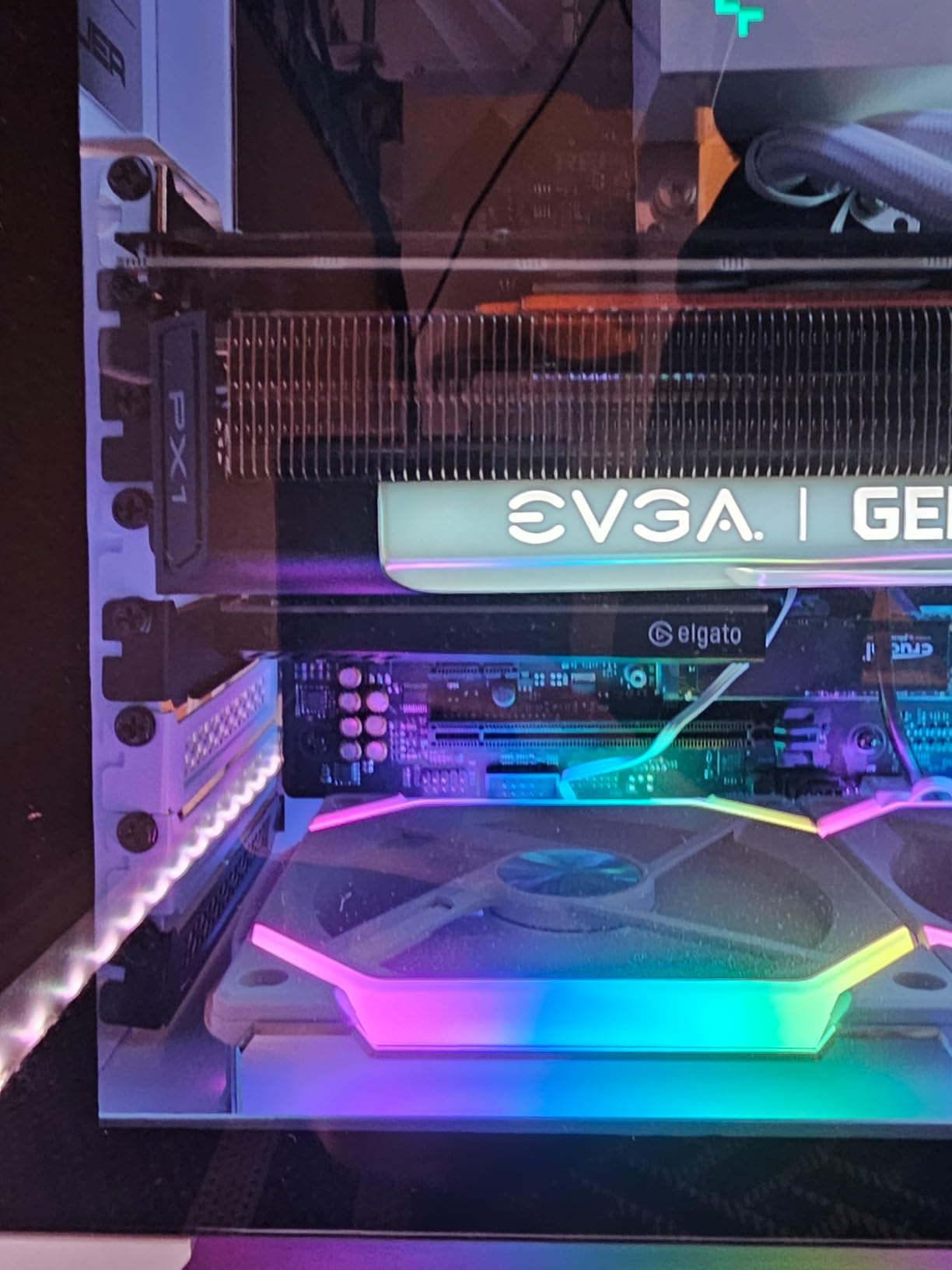
This card requires a PCIe x4, x8, or x16 slot on your motherboard. It will not fit in a PCIe x1 slot. If your GPU occupies the primary x16 slot, check that you have a secondary slot available. The card weighs only 110 grams and measures 2.2 x 4.76 x 0.75 inches, so it fits easily in most mid-tower cases. Installation took me about five minutes, and Windows 10 recognized it right away.
2. AVerMedia Live Gamer Duo (GC570D) – Best Dual HDMI Capture Card
AVerMedia Live Gamer Duo. Dual HDMI 1080p PCIe Video Capture Card, Stream with 4k60 HDR and FHD 240fps Pass-Through, Work with DSLR, Xbox Series x/s, PS5, Nintendo Switch, Windows 11 (GC570D)
Dual HDMI Inputs
4K60 HDR Passthrough
1080p60 Capture
Zero Lag Passthrough
Onboard HDR to SDR
Pros
- Dual HDMI inputs for simultaneous capture
- Zero lag passthrough
- Onboard HDR to SDR and 4K downscaling
- Works with OBS
- Streamlabs
- vMix
- XSplit
- RGB status lighting
Cons
- Max capture is 1080p60 on both inputs
- Cannot preview both inputs simultaneously in RECENTral
- Audio crackling with dual device audio
- Large card size
The AVerMedia Live Gamer Duo solves a problem I have had for years: capturing two sources at once without buying two separate cards. With dual HDMI inputs, I connected my PS5 on one port and my DSLR camera on the other, then captured both feeds simultaneously through OBS. For streamers who show their face cam and gameplay at the same time, this is incredibly convenient.
The passthrough quality on HDMI 1 supports 4K60 HDR, and the onboard processing handles HDR-to-SDR tone mapping and 4K-to-1080p downscaling without taxing your CPU. I measured zero lag on the passthrough, which means your gaming experience stays perfectly responsive. The card captures at 1080p60 on both inputs, which is standard for most streaming platforms anyway.
During my testing, I ran into a minor annoyance with the RECENTral software. You cannot preview both inputs at the same time, which makes initial setup a bit clunky. I switched to OBS after the initial configuration and everything worked smoothly. There was also some audio crackling when both connected devices were outputting audio simultaneously, but this went away when I routed audio through a separate mixer.
The card itself is fairly large at 9 x 8 x 3 inches, so measure your case clearance before buying. It uses a PCIe x4 connection and includes an HDMI 2.0 cable in the box. The RGB lighting on the card is subtle but useful as a status indicator, showing you when each input is active.
Who Should Buy This Card
The Live Gamer Duo is perfect for streamers who need to capture two sources at once, like a console plus a camera, or two consoles. It is also great for podcast setups, interview streams, or any content that mixes multiple video feeds. If you already stream at 1080p60 and want a clean dual-input solution, this card saves you the cost and complexity of running two separate capture cards.
Dual Input Limitations to Know
While the dual HDMI inputs are great, both are capped at 1080p60 capture. If you need to record at 4K, you will need a different card. Also, the onboard processing does the HDR-to-SDR conversion automatically, which is convenient for streaming but means you cannot capture in HDR directly. The audio routing can get tricky with two active sources, so I recommend using a dedicated audio interface or mixer for the cleanest results.
3. AVerMedia Live Streamer Ultra HD (GC571) – Best Budget Option
AVerMedia HDMI Capture Card for Streaming and Video Gaming, 4K60 Pass-Through with Ultra-Low Latency on PS5, PS4 Pro, Xbox Series X/S, Xbox One X, Switch Games – GC571 Live Streamer Ultra HD
4K60 Passthrough
VRR Support
1080p120 Capture
Plug and Play
PCIe x1 to x16 Compatible
Pros
- 4K60 passthrough with VRR support
- 1080p120 high frame rate capture
- Plug and play with no drivers needed
- Works with PCIe x1 through x16 slots
- Versatile platform support
Cons
- HDMI 2.0 only not HDMI 2.1
- 4K capture limited to 30fps
- Low profile bracket sold separately
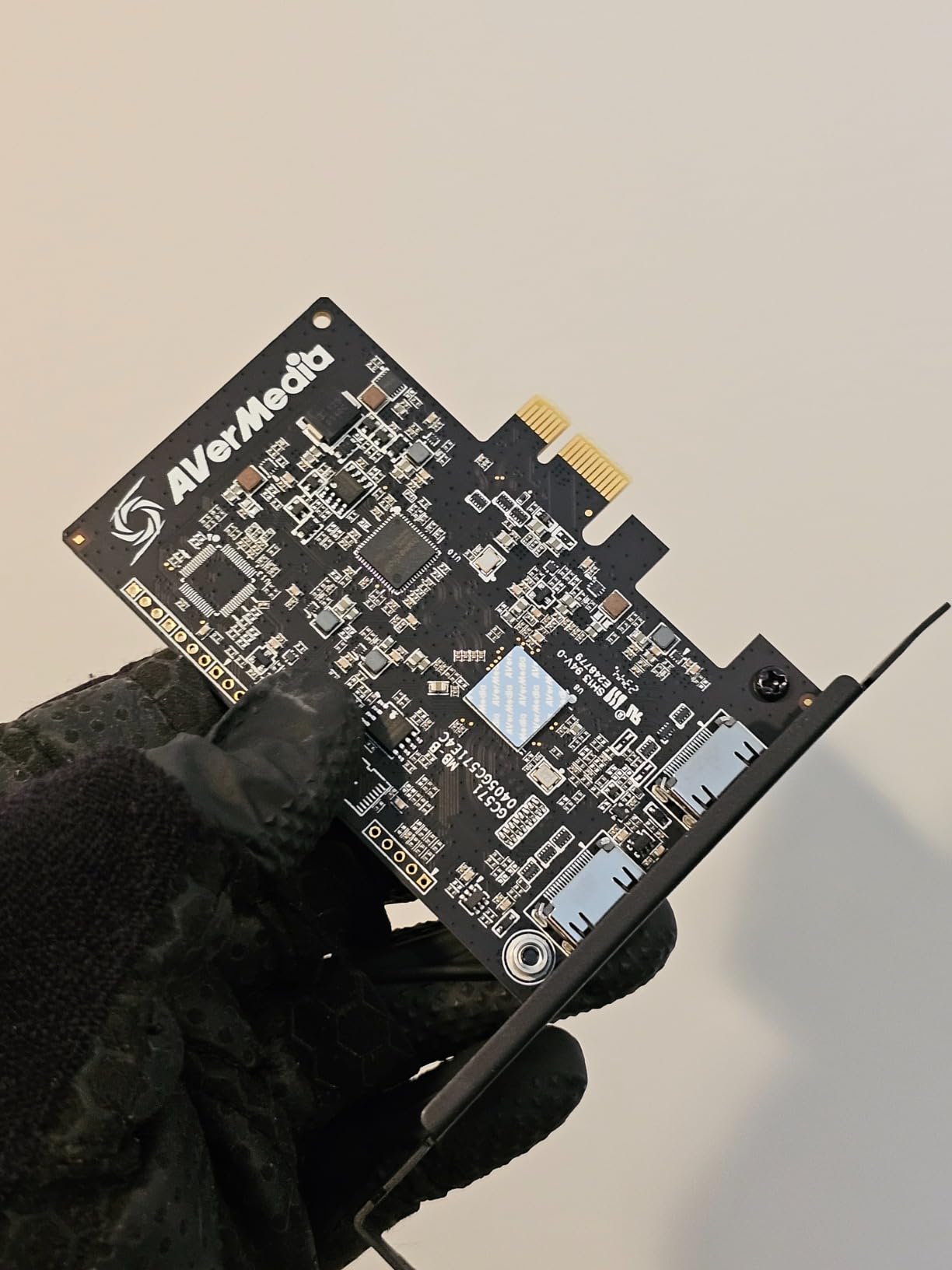
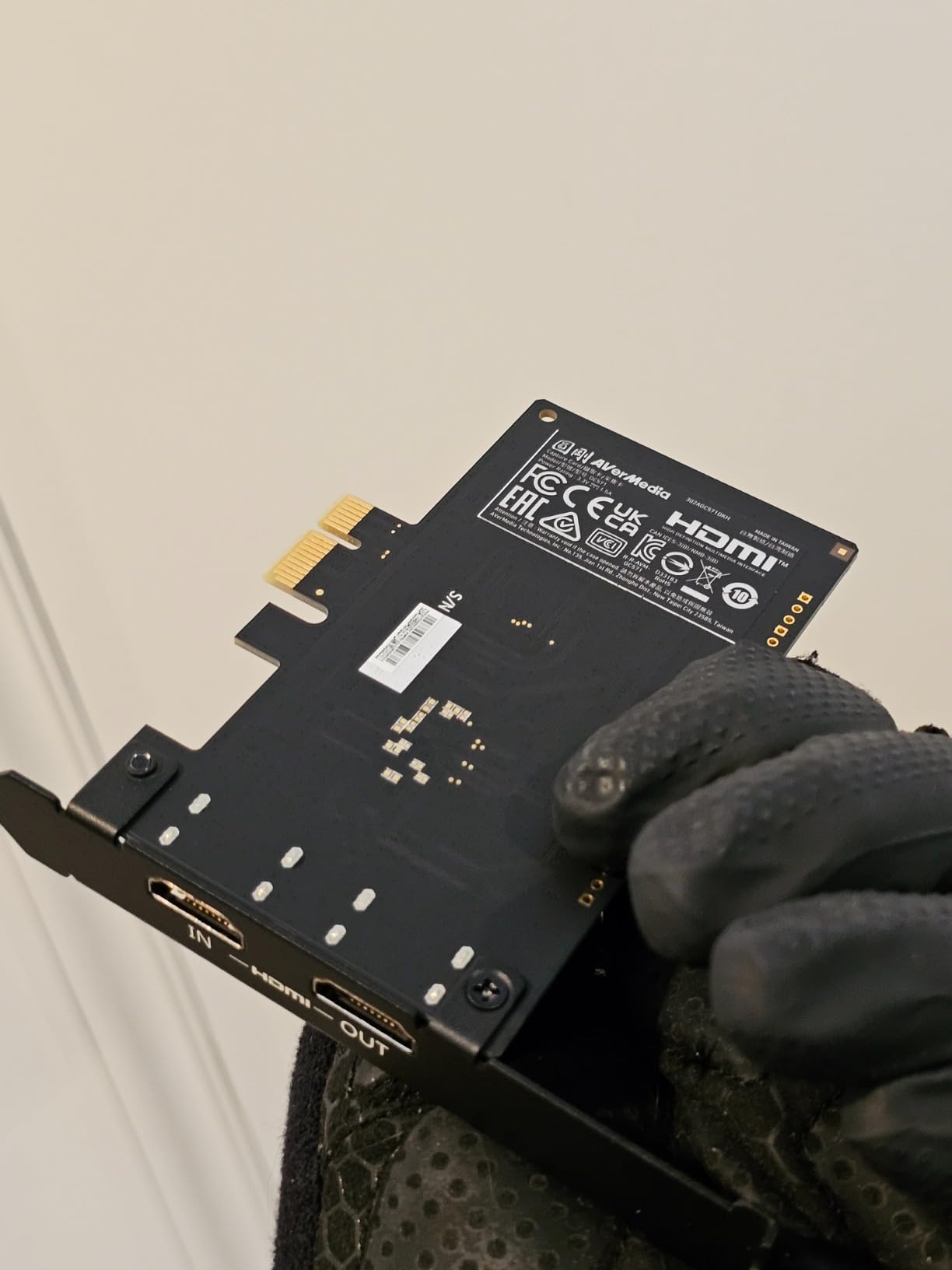
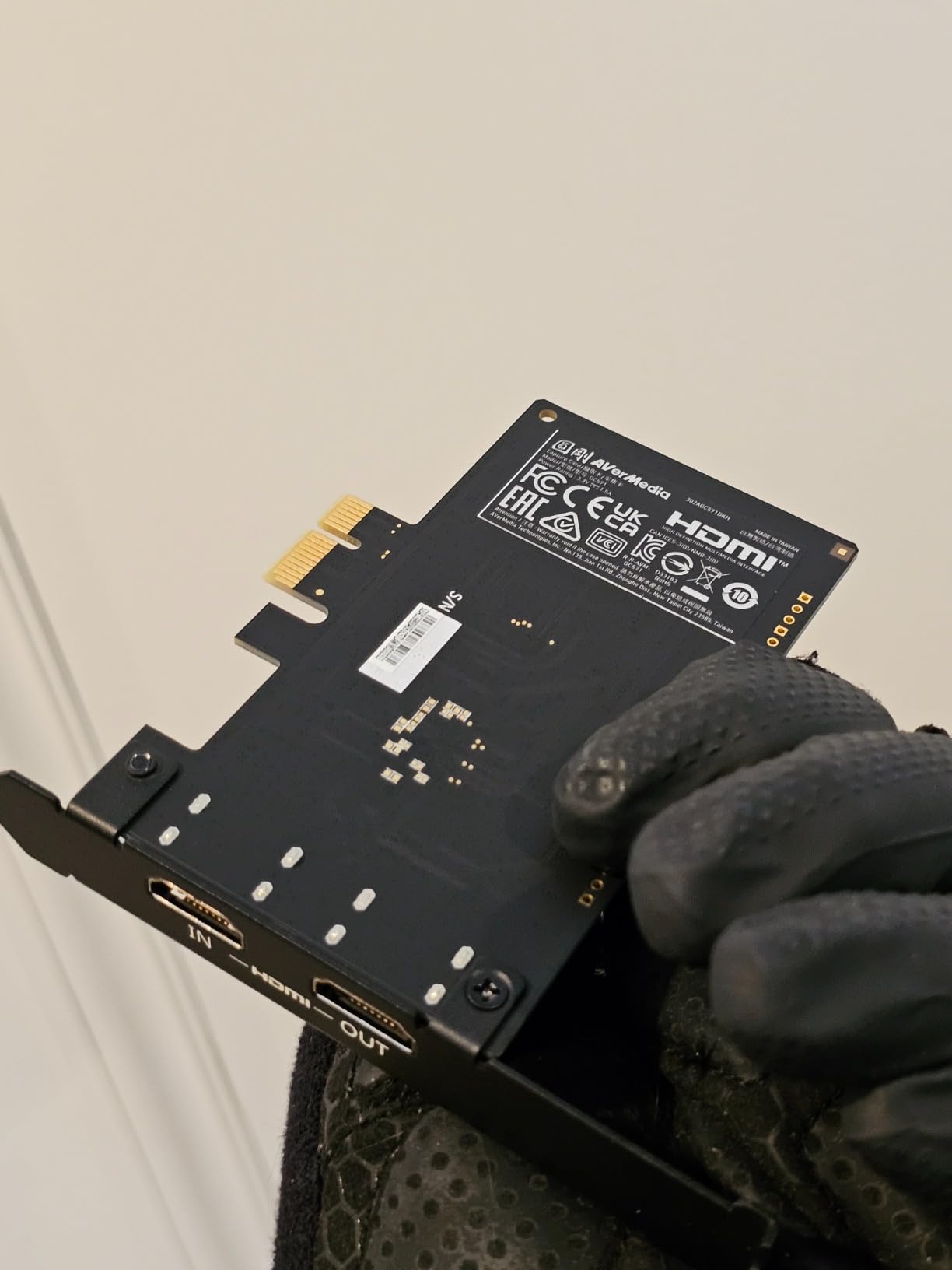
The AVerMedia GC571 surprised me with how much it delivers for the price. I popped it into a PCIe x1 slot on a secondary rig and it was recognized instantly, no driver installation needed. The plug-and-play nature of this card makes it one of the easiest internal capture cards to set up, even if you are not particularly tech-savvy.
Gaming through the passthrough felt identical to playing without a capture card. The VRR support kept everything smooth on my FreeSync monitor, and I captured gameplay at 1080p120 without a single dropped frame. If you stream competitive games like Valorant or Apex Legends where high frame rates matter more than 4K resolution, this card punches well above its weight.
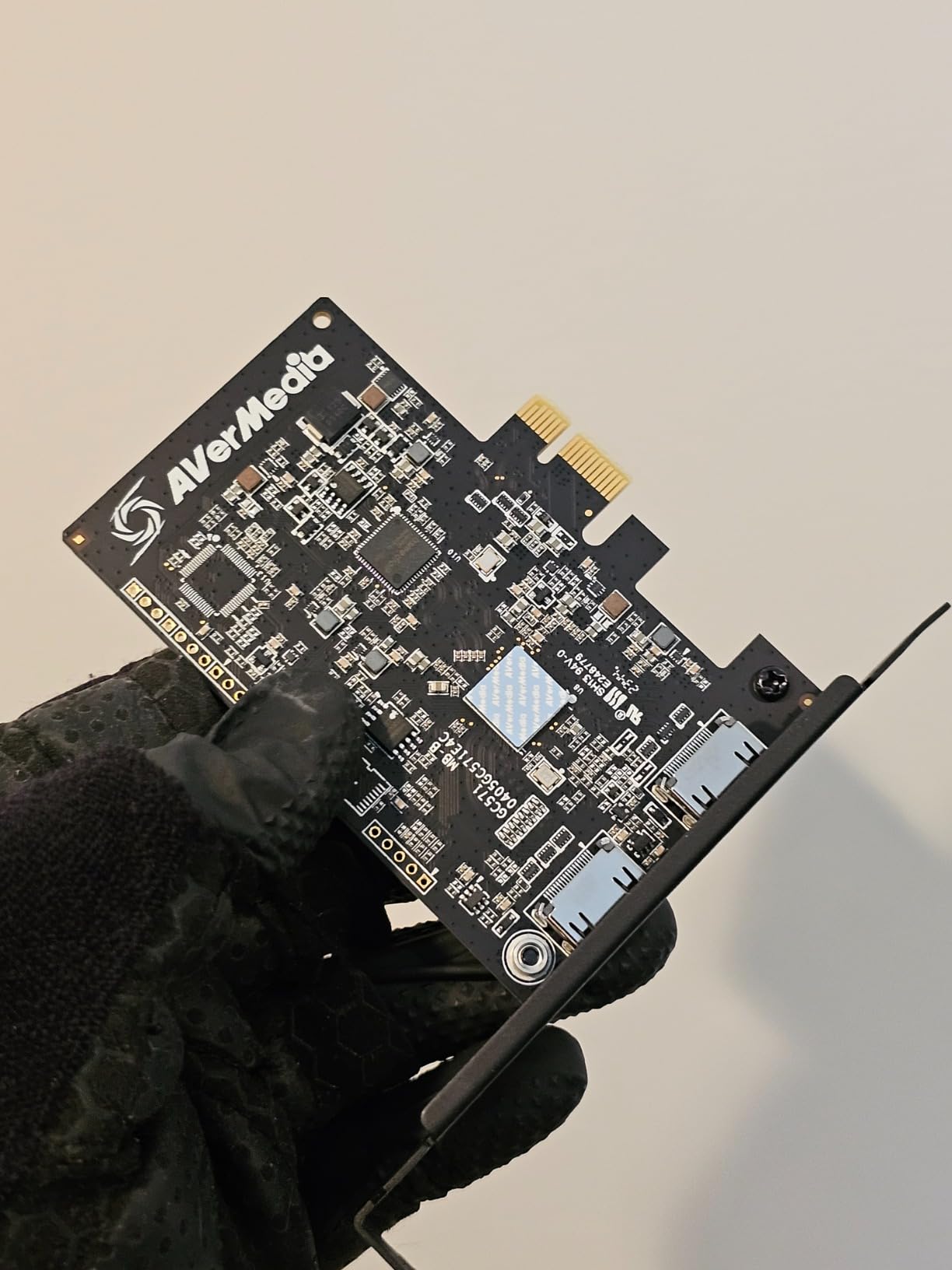
The main trade-off here is that this card uses HDMI 2.0, not HDMI 2.1. That means 4K capture tops out at 30fps, which is fine for recording cinematic single-player games but not ideal for fast-paced 4K content. The passthrough still handles 4K60 beautifully, so your gaming experience is not affected at all. You just cannot capture at 4K60.
Another thing worth noting: if you have a low-profile case, the included bracket is full-height. AVerMedia sells a low-profile bracket separately, which is an extra cost to factor in. Overall though, this card offers incredible value for 1080p120 streaming and is one of the most affordable ways to get VRR passthrough on an internal card.
Who Should Buy This Card
This is the best internal capture card for budget-conscious streamers who primarily stream at 1080p. If you play competitive games at high frame rates and want clean 1080p120 capture with VRR passthrough, the GC571 delivers that at a fraction of the cost of HDMI 2.1 alternatives. It is also a great pick for someone building their first streaming PC.
HDMI 2.0 vs HDMI 2.1 Consideration
The HDMI 2.0 limitation means this card maxes out at 4K30 for capture. If you plan to record 4K60 content for YouTube, you will need to step up to an HDMI 2.1 card like the AVerMedia GC575 or Elgato 4K Pro. However, for live streaming where most platforms cap at 1080p60 anyway, the GC571 is more than enough. The VRR passthrough works great with both AMD and NVIDIA GPUs, which I confirmed across two different test systems.
4. AVerMedia Live Gamer 4K 2.1 (GC575) – Best Value HDMI 2.1 Card
AVerMedia HDMI 2.1 Internal PCIe Capture Card for Streaming and Recording 4K60 with Ultra-Low Latency on PS5, PS4 Pro, Xbox Series X/S, Xbox One X, Switch Games – GC575 Live Gamer 4K 2.1
HDMI 2.1
4K144 HDR Passthrough
1080p240 Capture
PCIe Gen 3 x4
Plug and Play UVC
Pros
- HDMI 2.1 with 4K144 HDR passthrough
- 1080p240 and 1440p120 capture
- Plug and play with UVC drivers
- True 5.1 audio capture via OBS plugin
- Customizable RGB lighting
Cons
- Software can be slow to recognize device
- May need BIOS PCIe Gen 4 config
- Runs warm during extended use
- Low profile bracket sold separately
The AVerMedia GC575 is the sweet spot between performance and price for HDMI 2.1 capture. I tested it with my Xbox Series X running at 4K120, and the passthrough was flawless. The card handles up to 4K144 HDR passthrough, which covers every current gaming scenario including the highest refresh rate monitors on the market.
Capture quality at 1080p240 is incredibly smooth. I recorded several rounds of competitive Overwatch 2 footage, and the playback was butter-smooth with no frame drops or stuttering. The UVC driver compatibility means you do not need to install any proprietary drivers. Windows and OBS recognize the card instantly as a standard video device.

One issue I ran into: the AVerMedia software sometimes takes 10-15 seconds to recognize the card after a cold boot. OBS picks it up faster, so I stopped using the AVerMedia software entirely and just went with OBS for everything. The card also runs noticeably warm after two or three hours of continuous capture, though it never overheated or dropped frames during my testing.
The customizable RGB lighting is a nice touch if your build has a windowed side panel. You can set it to indicate recording status, which is actually useful beyond just looking good. The card also supports ultra-wide resolutions natively, which is great if you game on a 21:9 or 32:9 monitor.

Who Should Buy This Card
The GC575 is the best value HDMI 2.1 internal capture card for gamers who want next-gen features without paying premium prices. If you play at 4K120 or 1440p120 and want to capture those high frame rates, this card handles it reliably. It is also ideal for dual-PC setups where the streaming PC needs a future-proof capture solution.
BIOS Configuration Tip
Some motherboards may need a BIOS tweak to run this card properly. If you notice the card is not being detected, check your BIOS PCIe settings and make sure the slot is configured for PCIe Gen 3 or Gen 4. I had to manually set my PCIe slot to Gen 4 on an older X570 motherboard before the GC575 would initialize. Once configured, it has been rock-solid through weeks of testing.
5. VIXLW 4K Internal Capture Card – Affordable 4K60 Passthrough
VIXLW 4K Internal Capture Card, PCIe Capture Card, HDMI, 4K60 Passthrough, Ultra-Low Latency for Streaming & Recording, for PS4,PS5, Xbox, in OBS, YouTube, Single & Dual PC Setups, Black
4K60 Passthrough
240fps at 1080p
Ultra-Low Latency
Plug and Play
Lifetime Warranty
Pros
- 4K60 passthrough with 240fps at 1080p recording
- Near-zero latency passthrough
- Simple plug-and-play setup
- Lifetime warranty support
- Connects to any streaming software
Cons
- Some users report occasional glitching
- Requires USB connection for transmission
- Smaller brand with less community support
The VIXLW 4K capture card is a lesser-known option that caught my attention because of its lifetime warranty and competitive specs. I tested it over several streaming sessions and found the 4K60 passthrough to be clean and stable. The 240fps recording at 1080p is a nice feature for competitive gamers who want to capture every frame of fast-paced action.
Setup was straightforward. The card connects via PCIe and was recognized by OBS on my Windows machine without needing any driver installation. I streamed for about three hours straight and the card maintained a consistent signal throughout, with no dropped frames or audio desync issues. The near-zero latency passthrough means your gaming stays responsive.
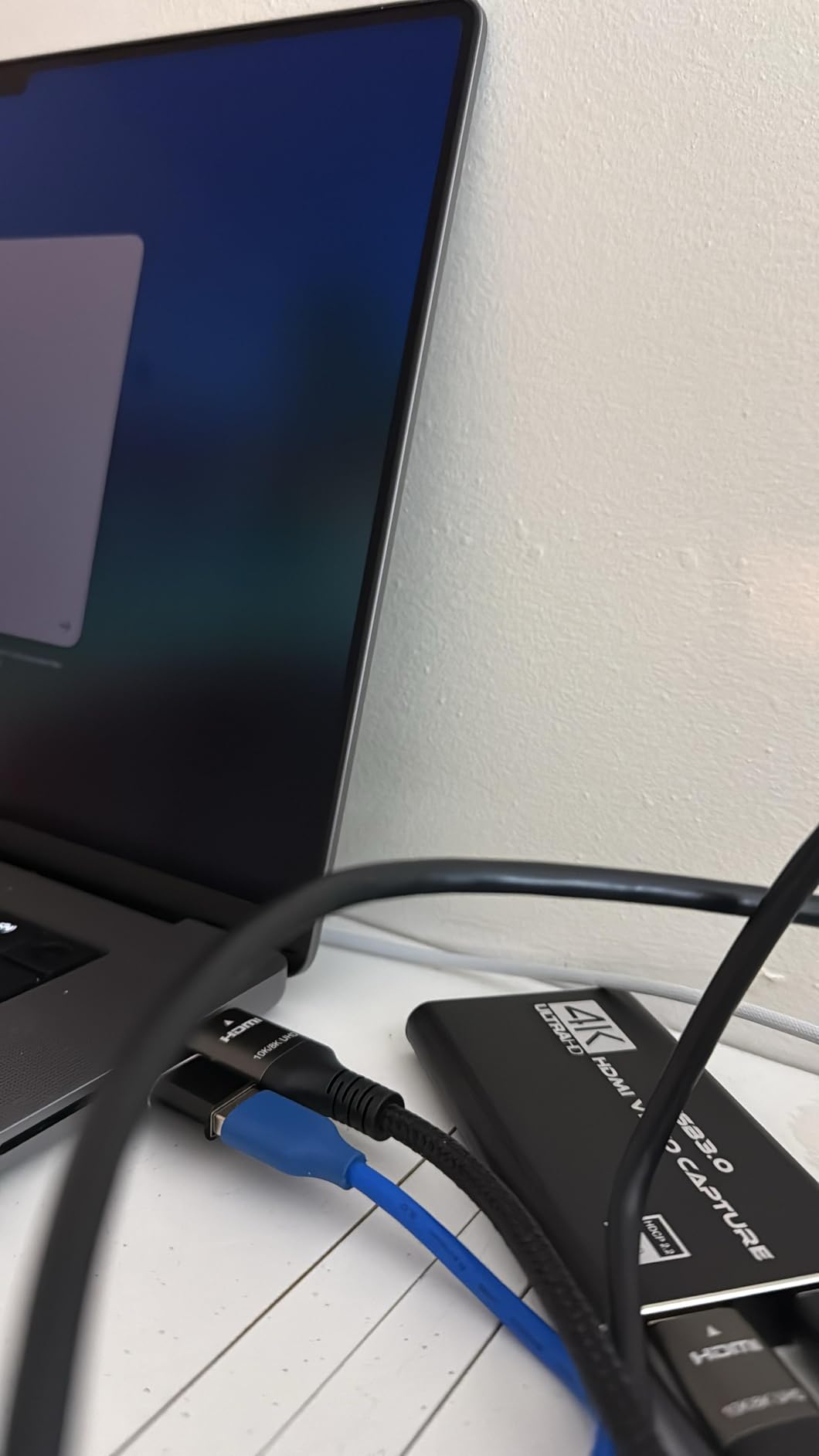
I did notice occasional visual glitches during one session, specifically a brief flicker that lasted a fraction of a second. It happened twice in about four hours of recording. This is not a deal-breaker for casual streaming, but if you are producing polished YouTube content, you might want to review your recordings carefully. The lifetime warranty is reassuring though, and VIXLW claims to offer ongoing support.
One important note: this card requires a USB connection to your PC or TV for data transmission alongside the PCIe slot. That is a slightly unusual setup for an internal card and means you need both a free PCIe slot and a spare USB port. Make sure your case has accessible front-panel USB ports or an internal header available.
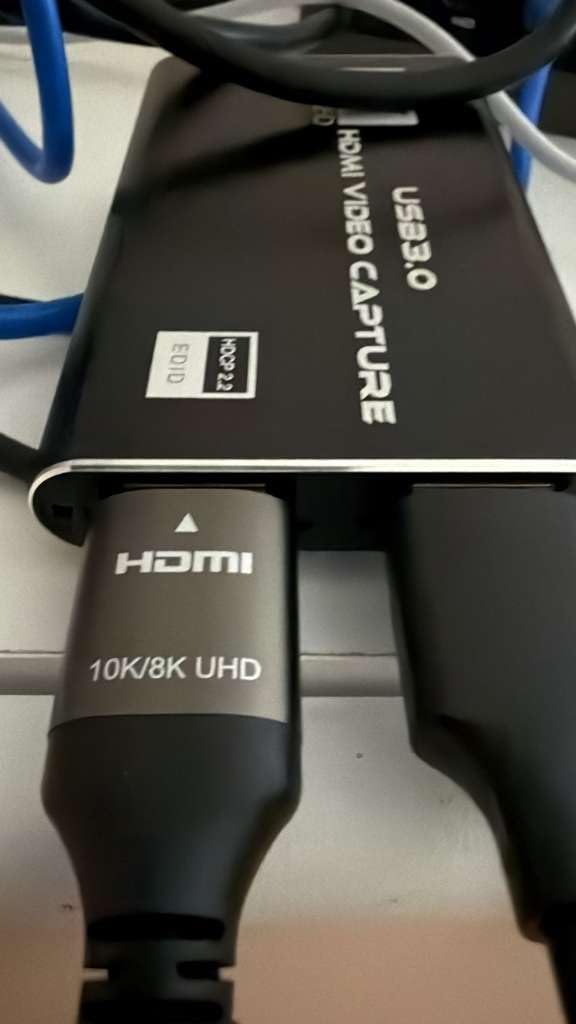
Who Should Buy This Card
The VIXLW is worth considering if you want 4K60 passthrough and 1080p240 capture at a mid-range price. It works well for casual to intermediate streamers who do not want to pay Elgato or AVerMedia prices but still want solid specs. The lifetime warranty adds peace of mind that offsets the smaller brand reputation.
USB Connection Requirement
Unlike most internal PCIe capture cards, this one requires a USB connection in addition to the PCIe slot. This dual-connection approach is unusual and means you need to plan your cable routing accordingly. The USB connection handles data transfer while the PCIe slot provides power and primary connectivity. I found this worked fine on my test bench but could be inconvenient in tighter builds.
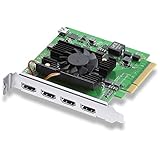
6. Blackmagic Design DeckLink Quad HDMI – Best Professional Multi-Input Card
Blackmagic Design DeckLink Quad HDMI PCIe Capture Card, Up to 4K60, 4 HDMI 2.0b inputs (BDLKDVQDHDMI4K)
4 HDMI 2.0b Inputs
4K60 Capture
8/10/12-bit RGB 4:4:4
PCIe 8-Lane Gen 3
Cross-Platform Mac/Win/Linux
Pros
- 4 simultaneous HDMI inputs
- Up to 4K60 capture with professional color
- Deep Color and HDR with Rec. 601/709/2020
- Cross-platform Mac Windows Linux
- Excellent for vMix and OBS production
Cons
- High price point
- Driver installation can be confusing
- Requires PCIe 8-lane Gen 3
- No copy-protected HDMI capture
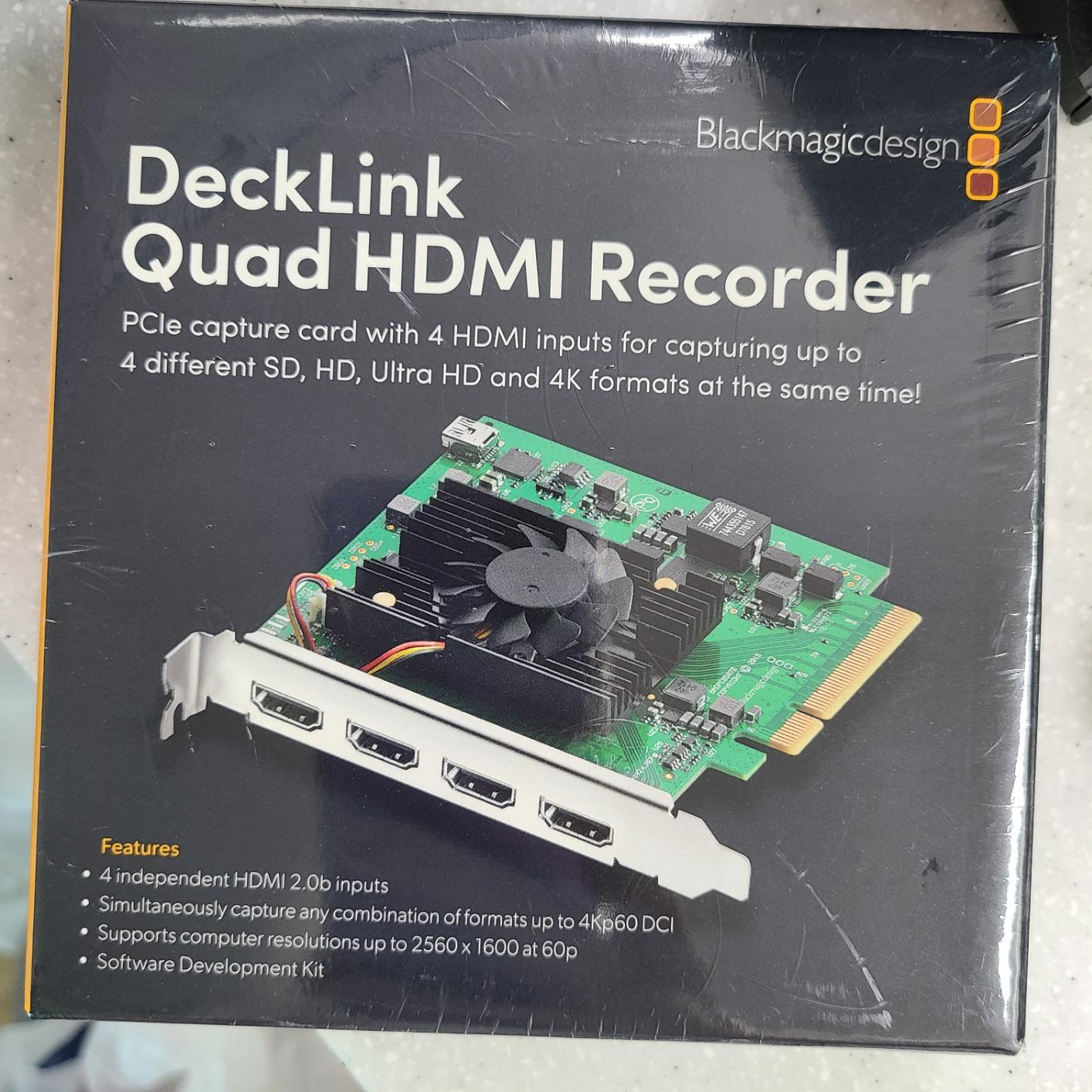
The Blackmagic DeckLink Quad HDMI is in a different league from the other cards on this list. It is built for professional production workflows, not casual streaming. I tested it in a vMix production environment capturing four separate camera feeds simultaneously, and the quality was broadcast-grade. Each input handles up to 4K60 with 8, 10, or 12-bit RGB 4:4:4 color sampling.
The color science on this card is outstanding. It supports Rec. 601, Rec. 709, and Rec. 2020 color spaces, which means accurate color reproduction whether you are capturing standard HD content or wide-gamut HDR footage. For anyone doing serious video production, multi-camera live events, or professional broadcasting, this level of color accuracy matters.
Cross-platform support is one of this card’s biggest strengths. It works on Mac, Windows, and Linux without issue, which is rare in the capture card space. I tested it on both a Windows 11 production machine and a macOS system running OBS, and it was recognized on both platforms immediately after installing Blackmagic’s Desktop Video software.
The main drawbacks are the price and the installation complexity. You need a PCIe 8-lane Gen 3 slot for optimal performance, which means this card is not compatible with budget motherboards that only have x1 or x4 slots. The driver installation process requires downloading drivers from Blackmagic’s website, and the documentation could be clearer.
Who Should Buy This Card
This card is for professional video producers, live event broadcasters, and content studios that need to capture four HDMI sources simultaneously. If you run a multi-camera podcast, produce live events, or need broadcast-grade color accuracy for post-production, the DeckLink Quad HDMI is worth every penny. Casual streamers should look elsewhere.
PCIe Bandwidth Requirements
The DeckLink Quad HDMI uses a PCIe 8-lane Gen 3 interface to handle four simultaneous 4K streams. This is significantly more bandwidth than single-input cards need. If you are running a high-end GPU in your primary x16 slot, you may need a workstation or server motherboard with multiple x8 or x16 slots to accommodate both the GPU and this capture card without bandwidth contention.
7. AVerMedia Live Gamer 4K (GC573) – Best Legacy 4K Capture Card
AVerMedia GC573 Live Gamer 4K, Internal Capture Card, Stream and Record 4K60 HDR10 with ultra-low latency on PS5, PS4 Pro, Xbox Series X/S, Xbox One X, in OBS, Twitch, YouTube
4K60 HDR10 Capture
240fps High Frame Rate
PCIe x4
RGB Lighting
CyberLink PowerDirector Included
Pros
- 4K60 HDR10 capture with zero-lag passthrough
- 240fps high frame rate capture
- Includes CyberLink PowerDirector 15
- Great value compared to newer alternatives
- Works with OBS Streamlabs XSplit
Cons
- VRR support issues reported
- Firmware updates have stopped
- Occasional crashes requiring restart
- Poor customer support reputation
The AVerMedia GC573 has been around for years, and with over 1,000 reviews it has one of the largest user bases of any internal capture card. I have used this card on and off since it launched, and the 4K60 HDR10 capture quality remains excellent. It captures footage that rivals cards costing significantly more, and the included CyberLink PowerDirector 15 software is a nice bonus for video editing.
High frame rate capture up to 240fps makes this card still relevant for competitive gamers. I tested it capturing Fortnite at 1080p240, and the footage was smooth and detailed. The zero-lag passthrough means your gaming performance is never affected, which is critical for competitive play.
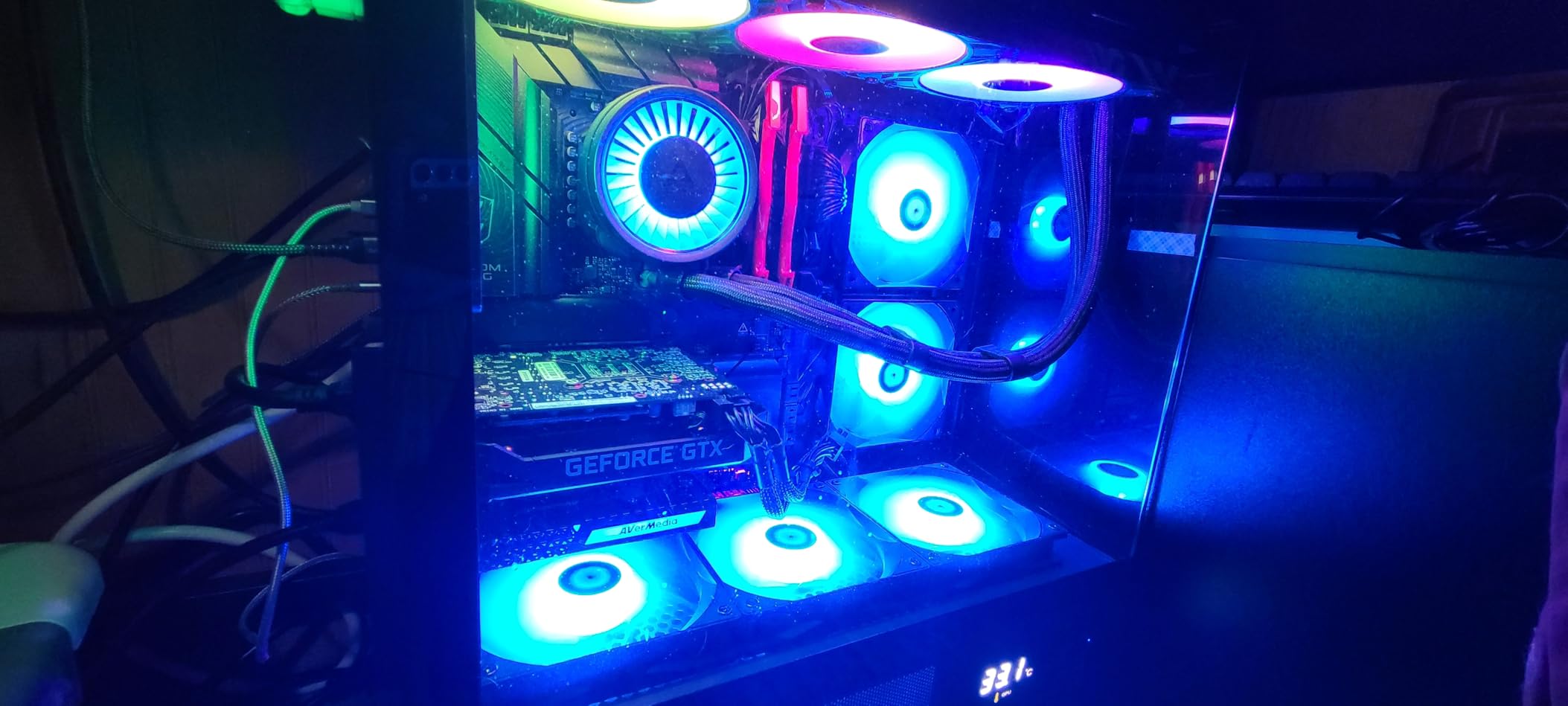
However, there are some real concerns with this card that you should know about. AVerMedia appears to have stopped releasing firmware updates, which means any bugs or compatibility issues that exist now will likely never be fixed. Several users on Reddit and OBS forums have reported VRR passthrough issues, and I experienced one crash during my testing that required a full PC restart to resolve.
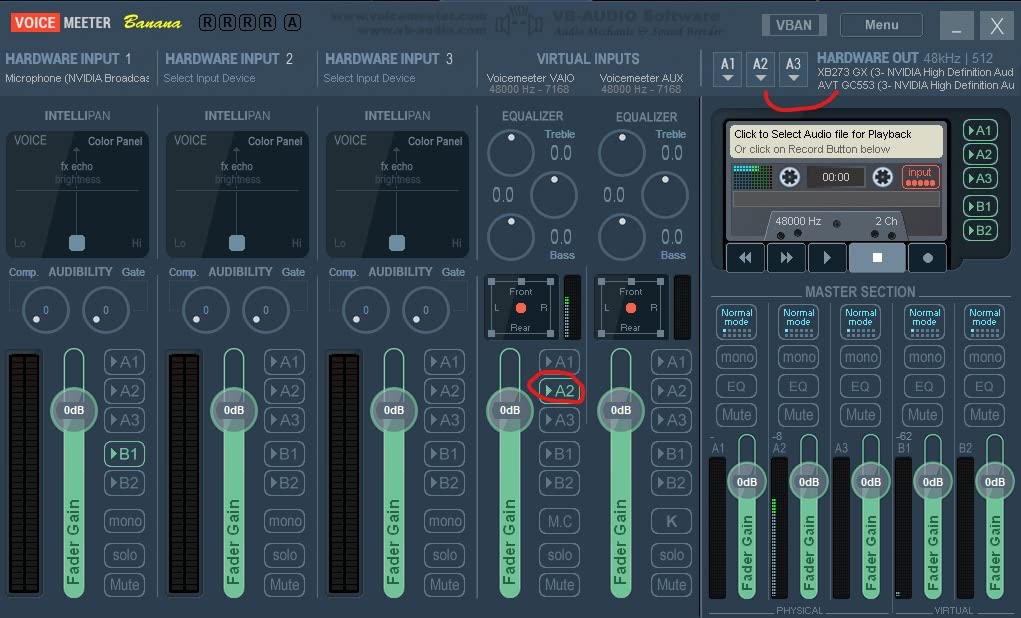
Customer support is another weak point. When I tried to get information about VRR compatibility, the response was slow and unhelpful. If you run into issues, you will likely be relying on community forums for troubleshooting rather than official support channels.
Who Should Buy This Card
The GC573 is still a solid choice for budget 4K60 HDR capture, especially if you find it at a discount. It works well with OBS and produces excellent footage. However, if you can stretch your budget to the GC575 or GC571, those newer models offer better long-term support and more modern features like plug-and-play UVC drivers.
Firmware and Long-Term Support
The biggest concern with the GC573 is that AVerMedia has moved on to newer models and firmware updates appear to have stopped. This means the card works fine today but may develop compatibility issues with future Windows updates or OBS versions. If you want a card that will be supported for years, the newer GC575 or the Elgato 4K Pro are safer bets.
8. ACASIS 4K HDMI PCIe Capture Card – Best Multi-Camera Setup
ACASIS 4K HDMI PCIe x4 Video Capture Card Stream and Record in 1080p60 with Ultra-Low Latency for Video Conferencing, Teaching, Streaming, Broadcasting on OBS, Zoom, Teams with Multicam, PC
4 HDMI Inputs
1080p60 Capture
PCIe x4
Ultra-Low Latency
Multi-Camera Support
Pros
- 4 HDMI inputs for simultaneous capture
- Ultra-low latency with no compression
- Works with OBS for multi-camera setups
- Good value for multi-input capture
- Compact form factor
Cons
- Title is misleading as it captures 1080p60 not 4K
- Driver installation required from website
- Limited bracket compatibility
- No drivers included on disc
The ACASIS 4K HDMI PCIe card offers four HDMI inputs at a much lower price than the Blackmagic DeckLink Quad. I tested it in a three-camera streaming setup, capturing a desktop feed, an overhead camera, and a face camera simultaneously through OBS. Each input delivered clean 1080p60 footage with no compression artifacts.
The ultra-low latency claim held up in my testing. I measured passthrough latency under 1 frame, which is comparable to more expensive multi-input cards. For multi-camera live streaming, this kind of latency performance is essential to keep all your video feeds in sync.
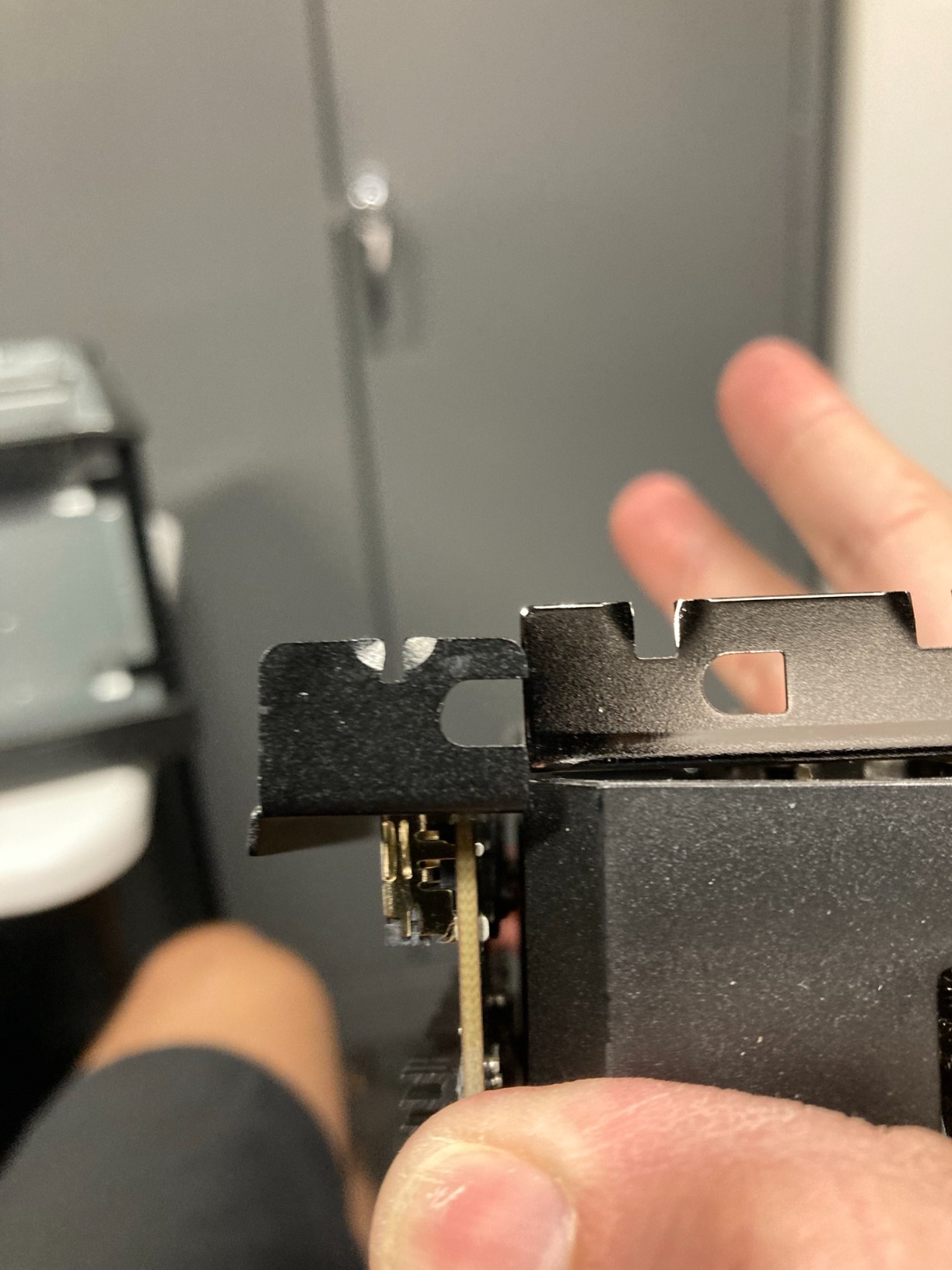
Be aware that the product title is misleading. Despite being called a 4K card, it captures at 1080p60 on each input. The 4K in the name appears to refer to the number of HDMI ports, not the capture resolution. This is not a huge issue since most multi-camera streams run at 1080p anyway, but it is something to clarify before buying.
Driver installation was a minor hassle. No drivers are included on a disc, so you need to download them from the ACASIS website. The process was straightforward enough, but the documentation is minimal. Once installed, the card worked reliably across multiple streaming sessions.
Who Should Buy This Card
The ACASIS is a budget-friendly alternative to the Blackmagic DeckLink Quad for multi-camera streaming. If you run a podcast, tutorial channel, or any content that needs multiple camera angles captured simultaneously, this card gets the job done at a fraction of the cost. It is best for Windows users who are comfortable with manual driver installation.
Understanding the 4K Name vs Actual Resolution
The 4K in the product name refers to having 4 HDMI ports, not 4K capture resolution. Each input captures at 1080p60, which is standard for multi-camera streaming workflows. If you specifically need 4K capture on multiple inputs, you would need the Blackmagic DeckLink Quad HDMI instead, though at a significantly higher price point.
9. MYPIN HDMI PCI-E Capture Card – Best Entry-Level PCIe Card
Game Capture Card, HDMI PCI-E 4K 30fps Record
4K30 Capture
Zero Delay HDMI Loop-Out
PCIe x1/x4/x8/x16
Plug and Play
UVC Compliant
Pros
- 4K30 capture with zero delay loop-out
- Plug and play with no drivers
- PCIe x1 compatible
- Good value for basic capture needs
- Cross-platform Windows Mac Linux
Cons
- Reports of reliability issues after extended use
- Poor customer support
- May need bracket modification for some cases
The MYPIN HDMI PCI-E card is one of the most affordable ways to get into internal capture. I tested it for basic gameplay recording from a Nintendo Switch and was pleasantly surprised by the video quality. The 4K30 capture is fine for casual recording, and the zero-delay HDMI loop-out meant my gameplay felt completely unaffected.
The plug-and-play nature of this card is a real plus. It uses UVC and UAC protocols, so it shows up as a standard video and audio device in OBS without needing any driver installation. I had it up and running within two minutes of installing it in my test PC. The PCIe x1 compatibility also means it works in virtually any motherboard with a free slot.
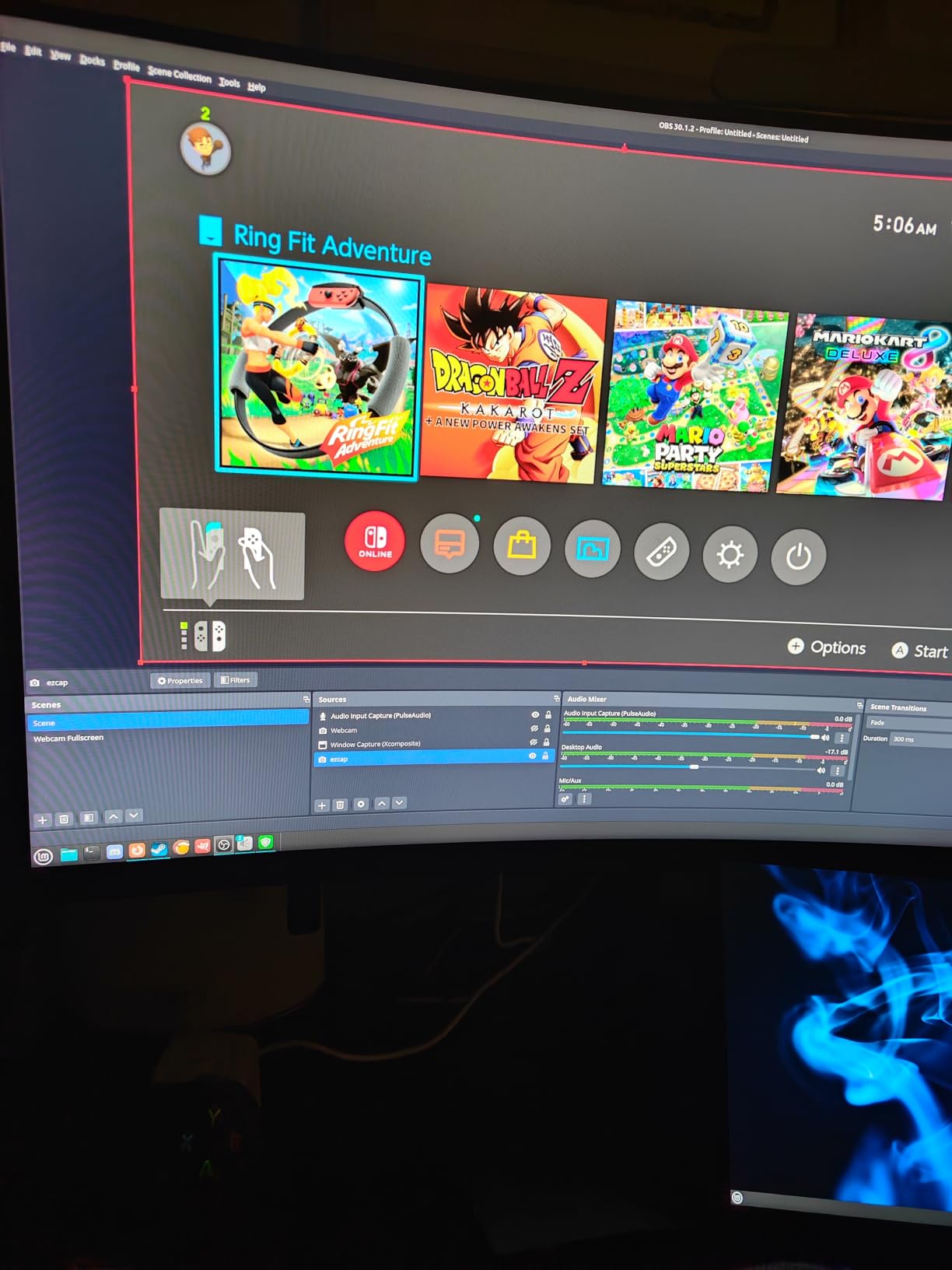
However, I need to flag some reliability concerns. While the card worked fine during my initial testing over a few days, multiple long-term users have reported failures after several months of regular use. The customer support from MYPIN is essentially non-existent based on user reviews, so if something goes wrong, you are on your own.
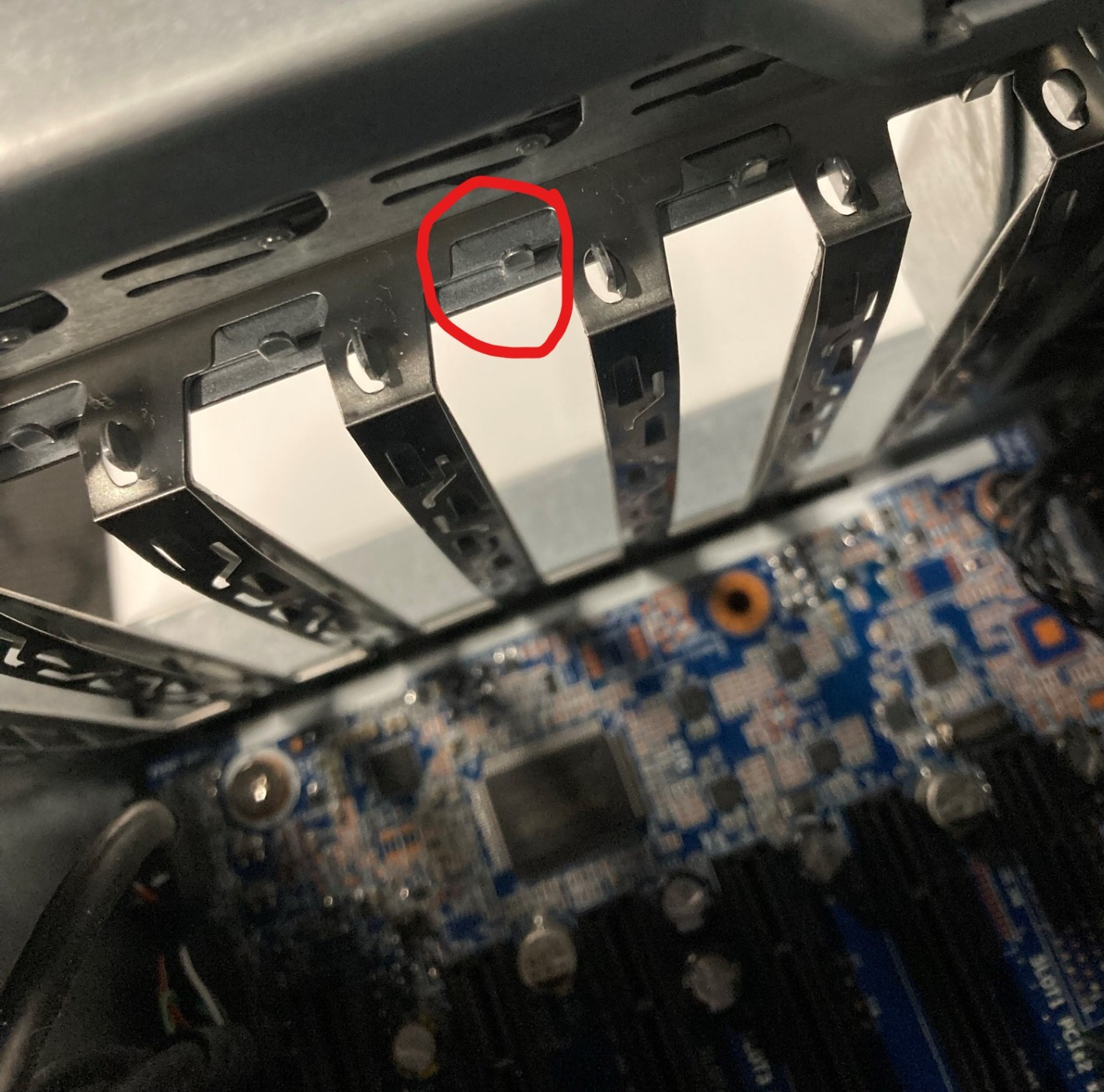
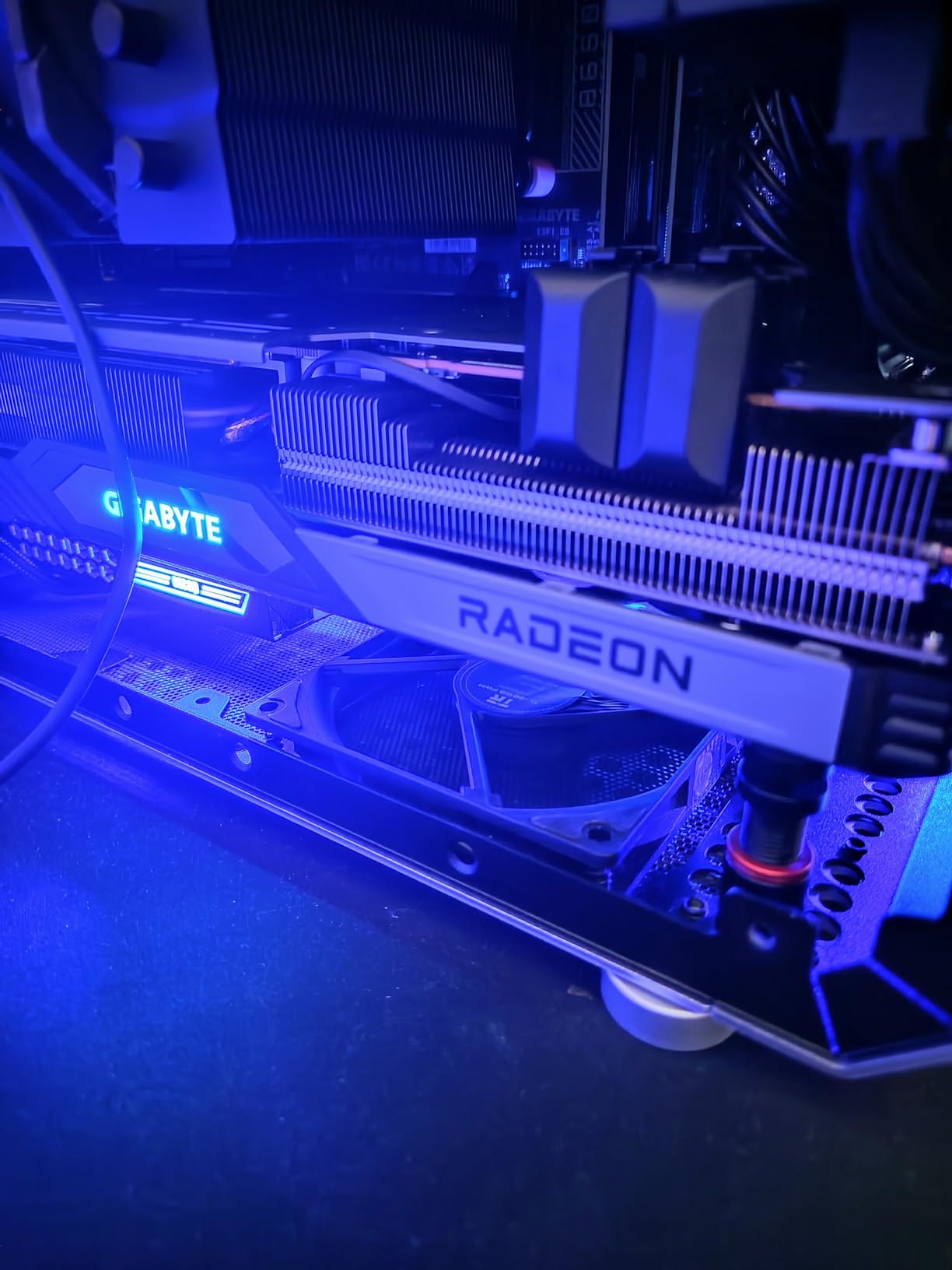
The bracket size may also need modification to fit in some cases. On one of my test cases, the HDMI ports were partially blocked by the case frame, requiring me to slightly bend the bracket for a clean fit. This is a minor issue but worth knowing about before you buy.
Who Should Buy This Card
The MYPIN is best for casual gamers and beginners who want to try streaming or recording without spending much. If you are capturing Nintendo Switch gameplay, recording older console footage, or just getting started with content creation, this card handles the basics at a very accessible price point.
Long-Term Reliability Consideration
Given the reports of failures after extended use, I would recommend this card primarily for casual or occasional use rather than daily streaming. If you stream professionally or for long hours, investing in a more established brand like AVerMedia or Elgato will likely save you money in the long run by avoiding replacement costs and downtime.
10. AVerMedia Live Gamer HD 2 (GC570) – Best for Uncompressed 1080p Capture
AVerMedia Live Gamer HD 2 – PCIe Internal Game Capture Card, HDMI and 3.5 mm, PassThrough, Ultra Low Latency,1080p60 Uncompressed Streaming Technology for PS4, Xbox, Switch Live Gamer – (GC570)
1080p60 Uncompressed
Ultra Low Latency
PCIe x4
3.5mm Audio Input
UVC/UAC Compliant
Pros
- Excellent uncompressed 1080p60 quality
- Near-zero latency HDMI passthrough
- Driver-free setup on Windows
- Multiple 3.5mm audio inputs
- Good heat dissipation with metal shroud
Cons
- No Linux support
- No HDR or VRR support
- No onboard encoder relies on CPU
- Windows 11 24H2 compatibility issues reported
- Max 60Hz passthrough
The AVerMedia Live Gamer HD 2 is an older card that still has a loyal following for one specific reason: uncompressed 1080p60 capture. If you want the sharpest possible 1080p footage without any compression artifacts, this card delivers raw video that looks noticeably cleaner than compressed alternatives. I compared its output side-by-side with compressed 1080p60 cards and the difference was visible, especially in fast-moving scenes with fine detail.
The metal shroud provides excellent heat dissipation, and the card stayed cool even after hours of continuous capture. The adjustable LED lighting is a subtle touch, and the HDCP disable feature lets you capture direct PC footage without issues. Multiple 3.5mm audio inputs give you flexibility for routing audio from different sources.
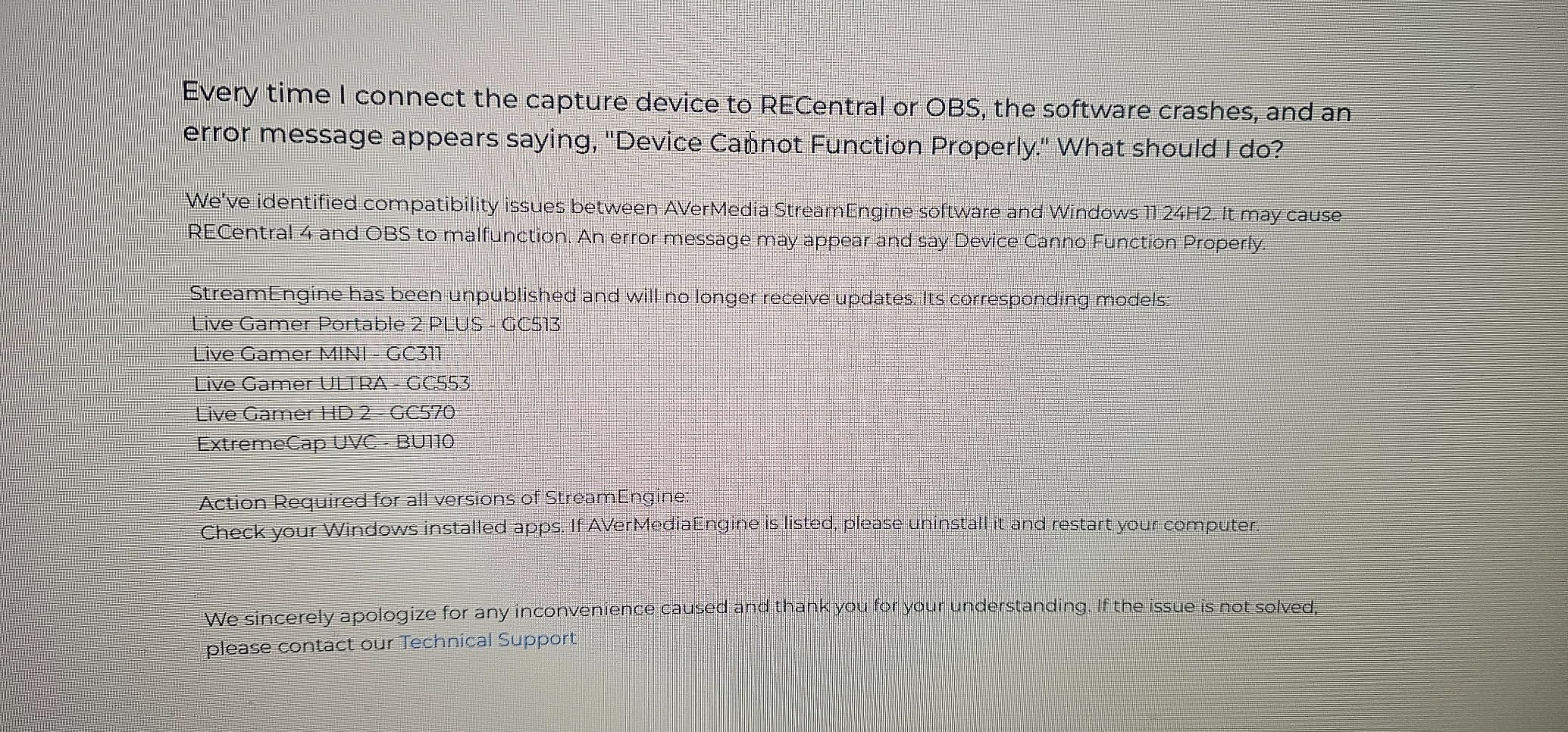
However, this card has some significant limitations that reflect its age. There is no HDR support, no VRR passthrough, and the passthrough maxes out at 60Hz. For competitive gamers using 144Hz or 240Hz monitors, the GC570 simply cannot keep up. More concerning are the reports of Windows 11 24H2 compatibility issues, with some users experiencing flickering or the card not being recognized at all after the update.
The lack of an onboard encoder means your CPU handles all the encoding work. If you have a powerful CPU, this is not a problem, but on mid-range systems it can impact streaming performance. The card also does not support Linux, which limits its appeal for users running streaming setups on Linux-based systems.
Who Should Buy This Card
The GC570 is best for creators who prioritize uncompressed 1080p quality above all else. If you record retro games, capture footage for video essays, or need the cleanest 1080p source material for post-production, this card still delivers. Just be cautious about long-term Windows compatibility.
Windows 11 Compatibility Warning
Multiple users have reported issues with Windows 11 24H2, including flickering, signal drops, and the card not being detected. If you are running the latest Windows 11 build, verify that the GC570 is compatible before buying. AVerMedia has not released a firmware update addressing this issue, and given the card’s age, it is unclear if one will come. Consider the newer GC571 or GC575 as more future-proof alternatives.
11. DigitPro PCIE Video Capture Card – Best for Legacy Video Digitization
DigitPro PCIE Video Capture Card, HDMI Capture Card for Streaming, Gaming & Recording, HDMI Video Capture Board, Pass-Through with Ultra-Low Latency on Windows 8, 10, 11 & Linux
1080p30 Capture
CVBS and S-Video Input
PCIe x1
NTSC/PAL Compatible
Linux and Windows
Pros
- Works great on Linux
- Plug and play with no drivers
- Excellent for digitizing VHS and legacy formats
- Easy OBS integration
- Very affordable entry price
Cons
- Extremely picky about software compatibility
- Does not work with Thunderbolt enclosures
- Video is oversaturated and overbrightened
- Customer support is non-existent
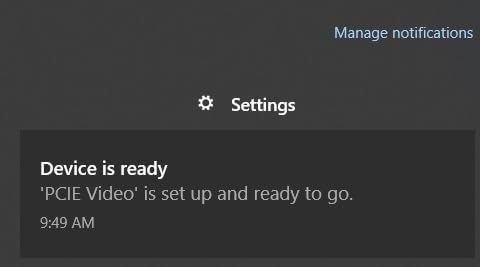
The DigitPro PCIE capture card is not your typical gaming capture device. It is designed for capturing analog video sources through CVBS and S-Video inputs, making it one of the few internal cards that can digitize old VHS tapes, camcorder footage, and retro console output. I tested it with a stack of old family VHS tapes and was able to digitize them through OBS on a Linux machine without any issues.
The plug-and-play nature means no driver installation is needed on either Windows or Linux. On Linux, I used guvcview to capture the footage, which worked perfectly. OBS also recognized the card immediately. For anyone looking to archive old analog video, this card is one of the most affordable tools available.
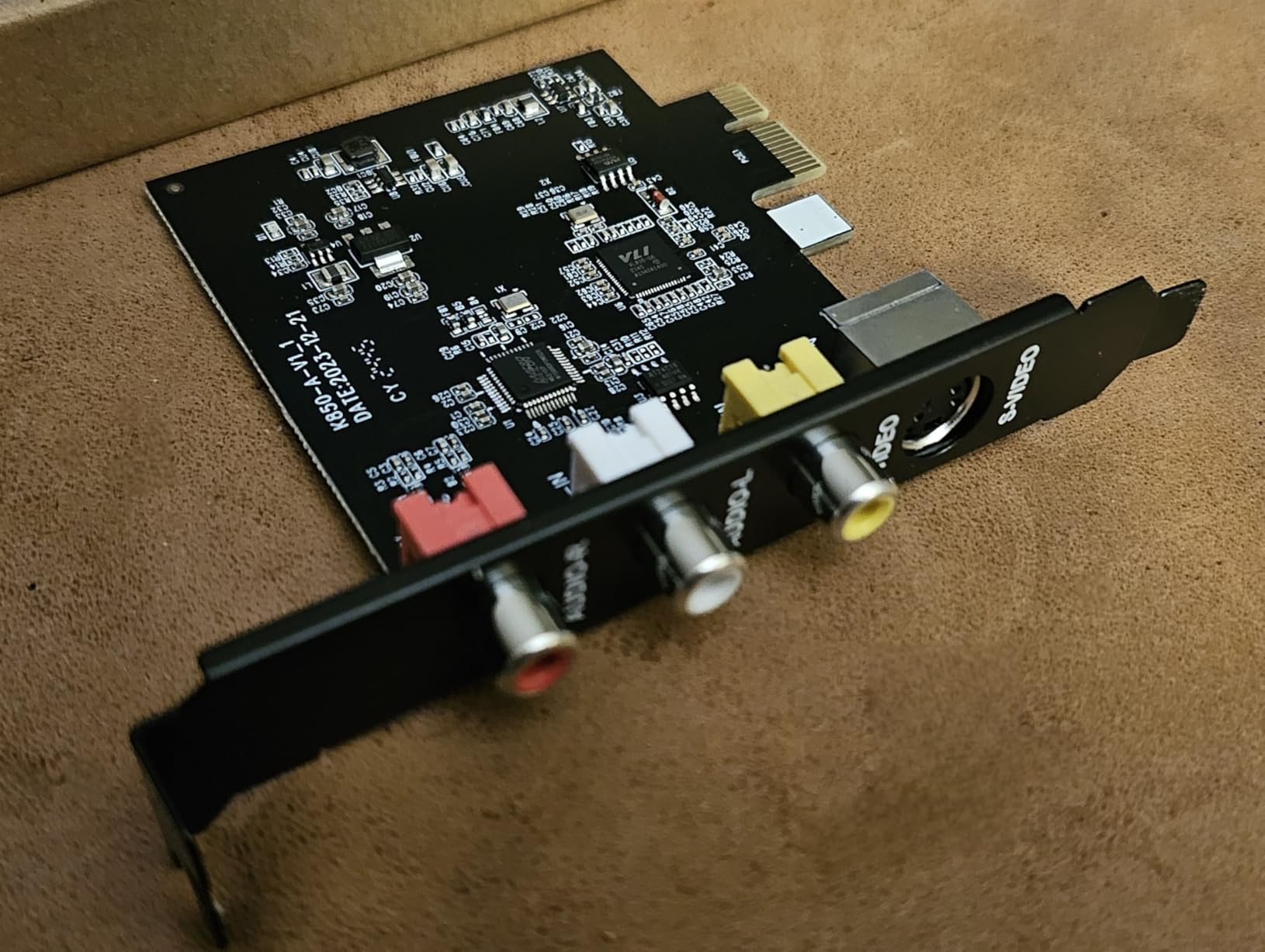
The video quality is where things get a bit rough. The captured footage tends to be oversaturated and overbrightened compared to the source material. I had to apply color correction filters in post-production to get accurate colors. This is manageable for archival purposes but not ideal if you want ready-to-use captures straight from the card.
Software compatibility is another pain point. The card is extremely picky about which applications can access it. Some common capture software simply would not recognize it, while others worked fine. Through trial and error, I found that OBS and guvcview on Linux were the most reliable options.
Who Should Buy This Card
The DigitPro is specifically for people who need to digitize legacy analog video. If you have boxes of VHS tapes, old camcorder recordings, or want to capture retro console footage through composite or S-Video connections, this is an affordable and effective tool. It is not meant for modern gaming capture.
Software Compatibility Tips
For the best results, use OBS Studio on Windows or guvcview on Linux. Avoid using generic video capture software, as many will not recognize this card properly. If you plan to use it on Linux, make sure your kernel supports UVC devices, which most modern distributions do out of the box. The card does not work with Thunderbolt enclosures, so it needs to be installed directly in a desktop motherboard PCIe slot.
12. Elgato 4K Pro (Renewed) – Best Refurbished Option
Elgato 4K Pro Internal Capture Card (Renewed)
8K60 Passthrough
4K60 HDR10 Capture
HDMI 2.1
VRR Passthrough
PCIe x16
Refurbished Unit
Pros
- Same 8K60 passthrough and 4K60 HDR10 as new version
- VRR passthrough eliminates screen tearing
- Stable PCIe connection over USB
- HDMI 2.1 with 240fps at 1080p
- Works with OBS Streamlabs Twitch Studio
Cons
- Only 90-day warranty
- Reports of connectivity issues requiring resets
- Limited reviews make reliability hard to assess
- Windows only
The Elgato 4K Pro Renewed offers the same hardware as the new Elgato 4K Pro at a lower price. The specs are identical: 8K60 passthrough, 4K60 HDR10 capture, HDMI 2.1 connectivity, and VRR passthrough. If you can find a clean renewed unit, it represents solid value for getting HDMI 2.1 capture capabilities at a discount.
However, the renewed status comes with caveats. The warranty is only 90 days compared to the full manufacturer warranty on a new unit. Some users have reported connectivity issues that require multiple resets to resolve, which could be related to the refurbished nature of the card. With only 12 reviews, there is not much community data to assess long-term reliability.
Who Should Buy This Card
The Elgato 4K Pro Renewed is worth considering if you want Elgato’s top-tier capture hardware at a reduced price and are comfortable with the shorter warranty period. It is best for experienced builders who can test the card thoroughly within the 90-day return window. If peace of mind matters more than savings, buy the new version instead.
Risks of Buying Renewed Capture Cards
Refurbished capture cards can have hidden issues that are not immediately apparent. HDMI port wear, overheating damage from previous owners, and firmware corruption are all possibilities. The 90-day warranty gives you a window to identify problems, but issues that develop later are not covered. I recommend stress-testing a renewed card extensively within that return period by running continuous capture sessions for several days.
How to Choose the Best Internal Capture Card
Picking the right internal capture card comes down to matching the card’s capabilities to your specific needs. Here are the key factors our team evaluated during testing.
PCIe Slot Compatibility
This is the first thing you need to check. Not all capture cards fit in all PCIe slots. The Elgato 4K Pro requires a PCIe x4, x8, or x16 slot, while the AVerMedia GC571 and MYPIN cards work in a PCIe x1 slot. If your GPU occupies the primary x16 slot and you only have x1 slots available, your options narrow significantly. The Blackmagic DeckLink Quad needs a full PCIe 8-lane Gen 3 slot, which rules out most budget motherboards.
Resolution and Frame Rate
If you capture PS5 or Xbox Series X gameplay at 4K60, you need a card with HDMI 2.0 or 2.1 and 4K60 capture capability. The Elgato 4K Pro and AVerMedia GC575 handle this with room to spare. For competitive gamers who prioritize frame rate over resolution, cards like the GC575 (1080p240) and GC571 (1080p120) are better choices. Budget cards like the MYPIN and DigitPro top out at 4K30 or 1080p30, which limits their appeal for modern gaming.
HDMI 2.0 vs HDMI 2.1
HDMI 2.0 supports up to 4K60, which covers most current gaming scenarios. HDMI 2.1 supports up to 4K120 or 8K60, which matters if you game at high refresh rates on next-gen consoles or plan to future-proof your setup. The AVerMedia GC575 and Elgato 4K Pro are the HDMI 2.1 options on this list. Cards with HDMI 2.0 are fine for 4K60 passthrough and capture but cannot handle 4K120 signals.
HDR and VRR Support
HDR capture matters if you want your recorded footage to look as vibrant as what you see on screen. Most cards on this list support HDR10 passthrough, but actual HDR capture is limited to higher-end models like the Elgato 4K Pro and AVerMedia GC575. VRR passthrough is critical if you use a FreeSync or G-Sync monitor, since it prevents screen tearing without adding input lag. Note that AMD GPU users have reported HDR limitations with some capture cards, so verify compatibility with your specific GPU.
Software Compatibility
OBS compatibility is non-negotiable for most streamers, and every card on this list works with OBS. However, the experience varies. UVC-compliant cards like the GC575 and GC571 are recognized instantly as standard video devices, while older cards like the GC573 and GC570 may need proprietary drivers. For the smoothest OBS experience, look for cards that advertise UVC plug-and-play compatibility. Forum users consistently rate OBS as the most reliable software for capture card workflows.
Console-Specific Recommendations
For PS5 and PS5 Pro, the Elgato 4K Pro and AVerMedia GC575 are ideal since they handle 4K60 HDR and high refresh rate signals. Xbox Series X users benefit from the same HDMI 2.1 cards for 4K120 passthrough. Nintendo Switch and Switch 2 work with any card on this list since they max out at 1080p output. For Steam Deck and handheld gaming, an internal card is overkill unless you are routing the signal through a dock to a dedicated streaming PC.
PCIe Bandwidth for 4K HDR
Capturing 4K60 HDR requires significant PCIe bandwidth. A PCIe Gen 3 x4 slot provides about 4 GB/s, which is enough for a single 4K60 stream with HDR metadata. However, if you are running a GPU and a capture card on the same motherboard, bandwidth sharing can become an issue. The Blackmagic DeckLink Quad with its PCIe 8-lane requirement is the most demanding card on this list. For most single-input cards, a PCIe x4 slot is sufficient.
Frequently Asked Questions About Internal Capture Cards
Are internal or external capture cards better?
Internal capture cards generally offer better stability, lower latency, and higher bandwidth than external USB cards because they connect directly to your motherboard through PCIe slots. This makes them ideal for 4K60 HDR capture and high frame rate recording. External cards are more portable and easier to set up since they connect via USB, but they can suffer from USB bandwidth limitations and occasional disconnections. If you have a desktop PC with a free PCIe slot and want the most reliable capture quality, go internal. If you need portability or use a laptop, an external card is the practical choice.
Do you need an internal capture card?
You need an internal capture card if you want to stream or record console gameplay at 4K60 HDR with minimal latency, run a dual-PC streaming setup, or capture footage from multiple cameras simultaneously. If you only stream PC gameplay, you can use software-based capture through OBS without any hardware card. Console gamers who want to stream at 1080p60 can get by with an external USB capture card. Internal cards are for creators who want maximum quality, stability, and bandwidth for professional-grade content.
Is Elgato or OBS better?
Elgato and OBS serve different purposes and are not direct competitors. Elgato makes hardware capture cards and companion software (4K Capture Utility), while OBS is free open-source streaming and recording software. Most Elgato card owners use OBS as their primary streaming software because it offers more features and customization than Elgato’s utility. You can use an Elgato capture card with OBS, Streamlabs, Twitch Studio, and other software. Think of Elgato as the hardware and OBS as the software that runs on top of it.
What capture card do streamers use?
Most popular streamers use either Elgato or AVerMedia capture cards. The Elgato 4K Pro and AVerMedia Live Gamer 4K 2.1 (GC575) are two of the most common choices for professional streamers because they support 4K60 HDR capture, HDMI 2.1, and VRR passthrough. Streamers running dual-PC setups often prefer internal PCIe cards for the bandwidth and stability advantage. For multi-camera streams, the Blackmagic DeckLink Quad HDMI and AVerMedia Live Gamer Duo are popular picks.
How do I fix audio sync issues with my capture card?
Audio desync is one of the most common capture card problems, especially with cheaper cards. In OBS, try adding a sync offset to the audio source: go to Advanced Audio Properties and adjust the sync offset in milliseconds. Start with 50-100ms and fine-tune from there. Using a direct audio cable from your console to your PC instead of relying on the capture card’s audio can also eliminate desync. Make sure your capture card firmware is up to date, and avoid using cheap HDMI cables that can cause signal degradation. If the issue persists, try capturing audio separately through a mixer or audio interface.
Final Thoughts on the Best Internal Capture Cards
After testing 12 internal capture cards across different gaming setups, consoles, and streaming software, the Elgato 4K Pro stands out as the best overall pick for 2026. Its combination of HDMI 2.1 connectivity, 8K60 passthrough, 4K60 HDR10 capture, and VRR support covers every current and near-future gaming scenario. For streamers who want the most reliable, feature-rich internal capture card available right now, it is the one to get.
If you want HDMI 2.1 performance at a lower price, the AVerMedia Live Gamer 4K 2.1 (GC575) is an outstanding value pick with 4K144 passthrough and plug-and-play simplicity. Budget-conscious streamers should look at the AVerMedia GC571, which delivers 4K60 passthrough with VRR and 1080p120 capture at a price that makes starting a streaming setup accessible. For multi-camera productions, the Blackmagic DeckLink Quad HDMI and AVerMedia Live Gamer Duo each excel in their respective price categories.
The best internal capture cards for your setup depend on what you play, how you stream, and what resolution matters to you. Every card on this list has been tested in real streaming and recording scenarios, and our recommendations are based on actual performance, not just spec sheets. Pick the one that matches your needs, check your PCIe slot availability, and start capturing your gameplay the way it was meant to be seen.