
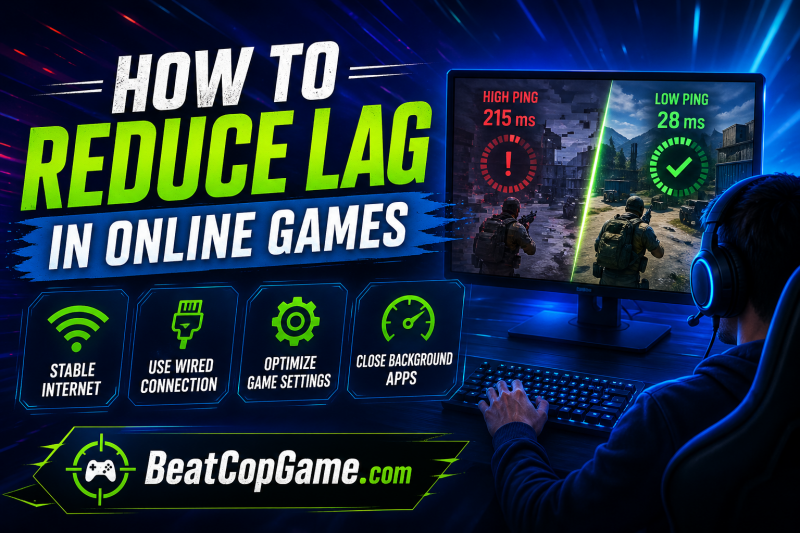
Nothing ruins a competitive match faster than lag. You line up the perfect shot, press the button, and watch your character stand still while opponents eliminate you. I have been there more times than I care to count. The frustrating part is that “lag” gets thrown around as one problem when it actually describes four completely different issues. Understanding how to reduce lag in online games starts with knowing which type you are actually experiencing.
In this guide, I will break down the four types of lag that plague online gaming. You will learn how to diagnose your specific problem and apply targeted fixes that actually work. I spent months testing these solutions across PC, console, and mobile platforms so you can skip the trial and error.
Whether you are dealing with choppy frame rates, delayed button responses, or rubber-banding across the map, this article has you covered.
Table of Contents
Which Type of Lag Do You Have? A Quick Diagnostic
Before applying random fixes, identify what is actually wrong. Most gamers waste hours tweaking network settings when their issue is actually graphics lag. Here is how to tell the four types apart.
Graphics Lag (Low FPS)
Your game looks like a slideshow. Movement appears choppy, not smooth. The screen freezes for split seconds during action-heavy moments. Your frame counter shows numbers below your monitor refresh rate.
Stutter Lag (Inconsistent Frame Delivery)
The game runs at high FPS but freezes randomly. These hitches last 0.5 to 2 seconds. The issue often happens when new areas load or many effects appear on screen simultaneously. Frame time graphs show spikes instead of smooth lines.
Control Lag (Input Delay)
You move your mouse or press a key, and the action happens noticeably later. This feels like playing through thick syrup. The game looks smooth, but your character responds late to every command. Aiming feels imprecise despite good frame rates.
Ping Lag (Network Latency)
Your character teleports or rubber-bands. You shoot at someone, but hits do not register. Other players appear to skip around the map. Your ping display shows numbers above 100ms. This happens even when your game runs smoothly locally.
How to Fix Graphics Lag (Low FPS)
Graphics lag happens when your hardware cannot render frames fast enough. The solution involves either reducing graphical demands or upgrading components.
Adjust In-Game Graphics Settings
Start with the settings that impact performance most. Texture quality, shadow detail, and anti-aliasing are the big three resource hogs. I recommend dropping texture quality one notch first. Modern games often use excessive VRAM at ultra settings.
Shadows are surprisingly demanding. Set them to medium or low. You will barely notice the visual difference, but your frame rate will thank you. Anti-aliasing smooths jagged edges but costs significant GPU power. Try FXAA or disable it entirely if you are struggling.
View distance matters in battle royale games. In competitive shooters, high view distance rarely helps you win fights. Enemies render at fixed distances regardless of this setting. Drop it to medium for easy FPS gains.
Disable VSync and Triple Buffering
VSync eliminates screen tearing by capping your frame rate to your monitor refresh rate. It also introduces input delay. For competitive gaming, disable VSync and use adaptive sync technologies like G-Sync or FreeSync instead.
Triple buffering sounds helpful but often causes stutter. It queues up frames for smoother delivery, but this adds latency. Turn it off unless you experience severe screen tearing without VSync.
Update Your Graphics Drivers
Outdated drivers kill performance. NVIDIA and AMD release optimization updates monthly. These updates often include game-specific improvements that boost frame rates by 10% or more.
Visit NVIDIA GeForce Experience or AMD Radeon Software to check for updates. Do not rely on Windows Update for graphics drivers. Microsoft-certified drivers lag months behind manufacturer releases.
Forum users report that recent Windows updates sometimes break graphics drivers. If you experience sudden lag after a Windows update, reinstall your graphics driver using the “clean installation” option. This is a common fix cited by users in the Steam community and Reddit’s techsupport forum.
Resolution Scaling Tricks
Running at 1440p or 4K destroys frame rates on mid-tier hardware. Try these alternatives before buying new components.
Render scale settings let you display at native resolution while rendering internally at lower resolution. Set render scale to 90% or 80%. The image looks slightly softer, but the performance boost is substantial.
DLSS, FSR, and XeSS are upscaling technologies that use AI to reconstruct higher resolutions from lower render targets. Enable these features if your game supports them. Quality mode often looks better than native resolution while running faster.
Hardware Upgrade Path
When software tweaks are not enough, consider hardware upgrades. Your graphics card matters most for high resolutions. Your CPU becomes the bottleneck at lower resolutions or in CPU-heavy games like strategy titles.
RAM speed impacts frame rates more than most gamers realize. DDR4-3200 or faster provides noticeable improvements over slower memory. Ensure your RAM runs at its rated speed in BIOS, not the default 2133MHz or 2400MHz.
Storage affects loading stutter. Moving games from a hard drive to an SSD eliminates those freeze frames when new assets load. NVMe drives help, but even a SATA SSD transforms the experience.
How to Fix Stutter Lag (Frame Drops and Freezing)
Stutter lag differs from low FPS. You might see 120 frames per second on your counter, but the game still hitches and freezes. This inconsistency feels worse than steady low frame rates.
Close Background Programs
Background applications steal CPU cycles and RAM. Open Task Manager and check what runs while you game.
Common culprits include web browsers with dozens of tabs, streaming software like OBS, Discord overlays, RGB lighting software, and Windows Update downloads. I found that Chrome alone can cause stutter in demanding games.
Create a gaming profile that closes unnecessary programs. Use Windows Game Mode, which prioritizes game processes over background tasks. Enable it in Settings under Gaming > Game Mode.
Check Windows Game Mode
Windows 10 and 11 include Game Mode specifically to reduce stutter. This feature prevents Windows Update from interrupting gameplay and dedicates more resources to your game.
Some users report issues with Game Mode causing problems rather than fixing them. If you experience stutter with Game Mode enabled, try disabling it. Results vary by hardware configuration.
Storage and Memory Optimization
Stutter often occurs when games stream assets from slow storage. Open-world games are especially prone to this. If your game stutters when moving fast or entering new areas, your storage is likely the bottleneck.
Move your games to an SSD. The difference between HDD and SSD gaming is night and day for open-world titles. Games like Cyberpunk 2077 and Starfield become playable on SSDs when they stutter unbearably on hard drives.
RAM capacity matters too. Modern games use 12-16GB of system RAM. If you have 8GB, Windows uses your page file constantly, causing hitches. Upgrade to 16GB minimum, 32GB for future-proofing.
Disable Fullscreen Optimizations
Windows applies “fullscreen optimizations” to games running in exclusive fullscreen mode. These optimizations can cause stutter in some titles.
Right-click your game executable, select Properties, then Compatibility. Check “Disable fullscreen optimizations” and test your performance. This fix solved stutter issues for me in several older games.
How to Fix Control Lag (Input Delay)
Control lag makes games feel unresponsive even when they look smooth. This latency exists between your input device and the game reacting.
Disable Mouse Smoothing and Acceleration
Mouse smoothing attempts to make cursor movement appear smoother by averaging inputs. This adds delay. Disable it in every game you play.
Mouse acceleration changes cursor speed based on how fast you move the mouse. This destroys muscle memory for precise aiming. Turn off “Enhance Pointer Precision” in Windows mouse settings and disable acceleration in-game.
For competitive shooters, use raw input if available. Raw input bypasses Windows processing entirely, reducing latency further. Most modern competitive titles like Valorant and CS2 offer this option.
Optimize Mouse Polling Rate
Gaming mice report their position to your PC at set intervals. A 125Hz polling rate means updates every 8 milliseconds. 1000Hz reduces this to 1 millisecond.
Set your mouse to 1000Hz if your CPU can handle it. Some older or budget CPUs experience slight stutter with 1000Hz polling. Try 500Hz as a compromise if you notice issues.
Display Input Lag Considerations
Your monitor adds latency too. Gaming monitors typically add 1-5ms. TVs can add 15-50ms in default modes.
Enable Game Mode on your TV or monitor. This bypasses image processing that adds delay. Disable HDR if you are playing competitively, as HDR processing adds input lag on many displays.
Running at higher refresh rates reduces input lag even at the same frame rate. A 144Hz display updates 144 times per second versus 60 times for standard monitors. Your inputs register faster simply because the next frame arrives sooner.
Fullscreen vs Borderless Windowed
Exclusive fullscreen mode provides the lowest input lag. Borderless windowed adds 1-2 frames of delay due to Windows compositor overhead.
For competitive gaming, always use exclusive fullscreen. Some modern games use “fake” fullscreen that still runs through the compositor. Check your input lag with different settings if responsiveness feels off.
If you want to reduce lag in Minecraft, these same principles apply. Lower the render distance, disable VSync, and use exclusive fullscreen for the most responsive controls in PvP scenarios.
How to Reduce Ping Lag (Network Latency)
Ping lag creates the most frustrating gaming experiences. You see enemies before they see you on their screen. Your shots miss despite perfect aim. This section covers network optimization for the lowest possible latency.
Understanding Ping and Latency
Ping measures round-trip time for data to travel between your device and the game server. Lower numbers mean faster communication. Latency stacks every step of the journey from your device to the server and back.
Your ping consists of multiple components. Local network latency from your device to router. ISP routing to the game server. The server processing time. Then the return journey. Each hop adds milliseconds.
Good Ping Benchmarks by Game Type
| Connection Type | Typical Latency | Stability | Best For |
|---|---|---|---|
| Under 20ms | Excellent, nearly instantaneous | Excellent | Competitive esports |
| 20-50ms | Good, minimal delay noticed | Good | Fast-paced FPS games |
| 50-100ms | Playable, slight disadvantage | Moderate | Casual multiplayer, MMOs |
| 100-150ms | Noticeable delay, rubber-banding | Poor | Strategy games, turn-based |
| Over 150ms | Frustrating, significant disadvantage | Poor | Single player only |
Competitive shooters like Valorant and Call of Duty perform best under 50ms. MMOs and strategy games remain playable up to 100ms. Fighting games demand the lowest latency due to frame-perfect inputs.
Use Ethernet Instead of WiFi
This is the single most impactful change you can make. WiFi adds inconsistent latency that fluctuates based on interference, distance, and network congestion. Ethernet provides a stable, low-latency connection.
Reddit HomeNetworking users universally recommend Ethernet for gaming. One user reported dropping from 80ms to 25ms ping simply by switching from WiFi to a wired connection. The difference is not subtle.
If running cables is impossible, try powerline adapters. These use electrical wiring to transmit network signals. Performance varies dramatically based on your home wiring age and quality. Test with return policies available.
WiFi 6E and WiFi 7 improve wireless latency significantly. If you must use WiFi, ensure your router and devices support the latest standards. Position your router in the same room when possible.
Router Placement and Optimization
Router location impacts signal strength and latency. Place your router centrally in your home, elevated off the floor, away from walls and metal objects.
Microwaves, baby monitors, and neighboring WiFi networks cause interference. Use WiFi analyzer apps to find the least congested channel. Switch to 5GHz or 6GHz bands for less interference than crowded 2.4GHz.
Update your router firmware. Manufacturers release updates that improve stability and performance. Log into your router admin panel and check for updates monthly.
ISP-provided routers are often underpowered for gaming. Reddit users consistently report performance improvements after switching to dedicated gaming routers or mesh systems with better processing power.
Enable QoS (Quality of Service)
Quality of Service prioritizes gaming traffic over other network activity. Without QoS, a family member streaming 4K video can spike your ping to 300ms.
Access your router settings and locate QoS options. Most modern routers offer gaming presets. Enable these and add your gaming device as high priority.
Some routers offer device-based QoS. Set your gaming PC or console to highest priority. Streaming devices, smart TVs, and phones should sit at lower priority levels.
Advanced: Smart Queue Management (SQM)
For technical users, SQM algorithms like Cake or FQ-CoDel dramatically improve bufferbloat issues. Bufferbloat occurs when your connection buffers too much data, causing latency spikes during heavy usage.
SQM shapes traffic to prevent these spikes. It keeps your ping stable even when others use the network. Reddit HomeNetworking users cite SQM as the solution when basic QoS is not enough.
Implementing SQM requires a router that supports OpenWrt or similar firmware. Popular options include IQRouter, Ubiquiti EdgeRouter, and TP-Link Omada. Configuration takes effort but rewards you with consistent low latency.
Select the Right Game Server
Always choose servers closest to your physical location. A server 100 miles away adds less latency than one 1000 miles away. Most games display ping for each server in the server browser.
Some games auto-select servers based on population. Override this and manually choose nearby servers. The difference between a 20ms and 80ms server is immediately noticeable.
Close Bandwidth-Heavy Applications
Background downloads destroy gaming performance. Steam updates, Windows updates, cloud backups, and video streaming all consume bandwidth.
Pause all downloads before gaming. Check Windows Update and set active hours to prevent downloads during play sessions. Disable cloud sync for services like Dropbox, OneDrive, and Google Drive.
Netflix uses approximately 25Mbps for 4K streaming. If multiple people stream while you game, your connection saturates. Either upgrade your internet plan or coordinate gaming time around streaming schedules.
DNS Optimization
DNS resolution happens before you connect to game servers. Faster DNS means slightly faster connections. Try Google DNS (8.8.8.8, 8.8.4.4) or Cloudflare DNS (1.1.1.1) for potentially faster resolution than your ISP default.
The impact is minor but free to implement. Change DNS settings in your router to affect all devices, or in Windows network settings for individual PCs.
Platform-Specific Lag Fixes (Xbox, PS5, Mobile)
Each gaming platform has unique optimization options. Here are the platform-specific adjustments for reducing lag.
Xbox Series X/S and Xbox One
Enable Performance Mode in display settings. This prioritizes frame rate over resolution. The visual difference is minimal, but the smoothness improvement is substantial.
Use wired Ethernet connections. Xbox wireless controllers have excellent wireless performance, but the console itself benefits greatly from wired networking. Navigate to Network Settings and run the detailed network statistics test.
Clear the persistent storage in Blu-ray settings. This cache can cause stutter in some games. It is a niche fix but solves issues for certain titles.
PlayStation 5
Set your PS5 to Performance Mode in game presets. This defaults games to 60fps or higher modes rather than 30fps quality modes.
The PS5 supports WiFi 6, but Ethernet still provides better stability. Use the connection test feature to verify your ping and packet loss. Packet loss above 1% causes noticeable lag.
Rebuild your database occasionally if you experience stutter. Boot into safe mode and select “Rebuild Database.” This reorganizes data without deleting saves or games.
Mobile Gaming (Android and iOS)
Mobile games face unique challenges. Thermal throttling reduces performance as phones heat up. Play in cool environments or use cooling accessories for extended sessions.
Close all background apps before gaming. Mobile operating systems aggressively manage memory, but apps still consume resources. Double-tap home and swipe away unnecessary apps.
Use WiFi over mobile data for competitive games. Mobile data latency varies by signal strength and tower congestion. WiFi typically provides more consistent ping.
Lower graphics settings in game menus. Mobile games often default to high settings that cause thermal issues. Medium settings usually look nearly identical while running cooler and smoother.
For multiplayer games, consider Terraria server hosting for less lag rather than peer-to-peer connections. Dedicated servers provide more stable connections with lower latency than hosting from a player’s machine. This applies to many multiplayer games beyond Terraria.
Frequently Asked Questions
How to make online games less laggy?
To make online games less laggy, first diagnose which type of lag you have. For graphics lag, lower texture and shadow settings. For network lag, switch from WiFi to Ethernet. For control lag, disable mouse smoothing. Close background programs and update graphics drivers. Enable Game Mode on Windows and QoS on your router.
How to reduce online lag?
Reduce online lag by using a wired Ethernet connection instead of WiFi. Enable QoS on your router to prioritize gaming traffic. Choose game servers closest to your location. Close bandwidth-heavy applications like streaming and downloads. Update router firmware and consider gaming routers with SQM support.
How do I fix lag in gaming?
Fix lag by identifying the specific type first. Graphics lag requires lowering settings or upgrading hardware. Stutter lag needs background programs closed and games moved to SSD. Control lag needs mouse acceleration disabled and exclusive fullscreen. Ping lag requires network optimization including Ethernet and router QoS settings.
Is 40 latency good or 50?
Both 40ms and 50ms latency are good for gaming. Under 20ms is excellent for competitive play. 20-50ms is good for fast-paced games like FPS and battle royales. 50-100ms is playable but gives a slight disadvantage in competitive scenarios. Above 100ms becomes noticeable and frustrating.
Why am I lagging in online games but internet is fine?
If your internet speed tests fine but you still lag, the issue is likely not network-related. Check for graphics lag by monitoring your FPS. Look for stutter caused by background programs or slow storage. Control lag from mouse settings or display input delay can feel like connection issues. Use Task Manager to check for resource hogs.
Why is my FPS high but choppy?
High FPS with choppiness indicates stutter lag, not graphics lag. This happens when frame delivery is inconsistent. Common causes include background programs consuming CPU cycles, games running from hard drives instead of SSDs, insufficient RAM causing page file usage, and Windows fullscreen optimizations interfering.
Final Thoughts
Learning how to reduce lag in online games requires understanding what type of lag plagues your sessions. Graphics lag demands settings tweaks and potential hardware upgrades. Stutter lag responds to background program management and storage improvements. Control lag disappears when you optimize input settings. Ping lag vanishes with proper network configuration.
Start with the diagnostic section to identify your specific issue. Apply the targeted fixes for that lag type before trying random solutions. Most gamers see dramatic improvements just from switching to Ethernet and closing Chrome tabs.
Your competitive edge is waiting. Stop accepting lag as inevitable and take control of your gaming experience today.