
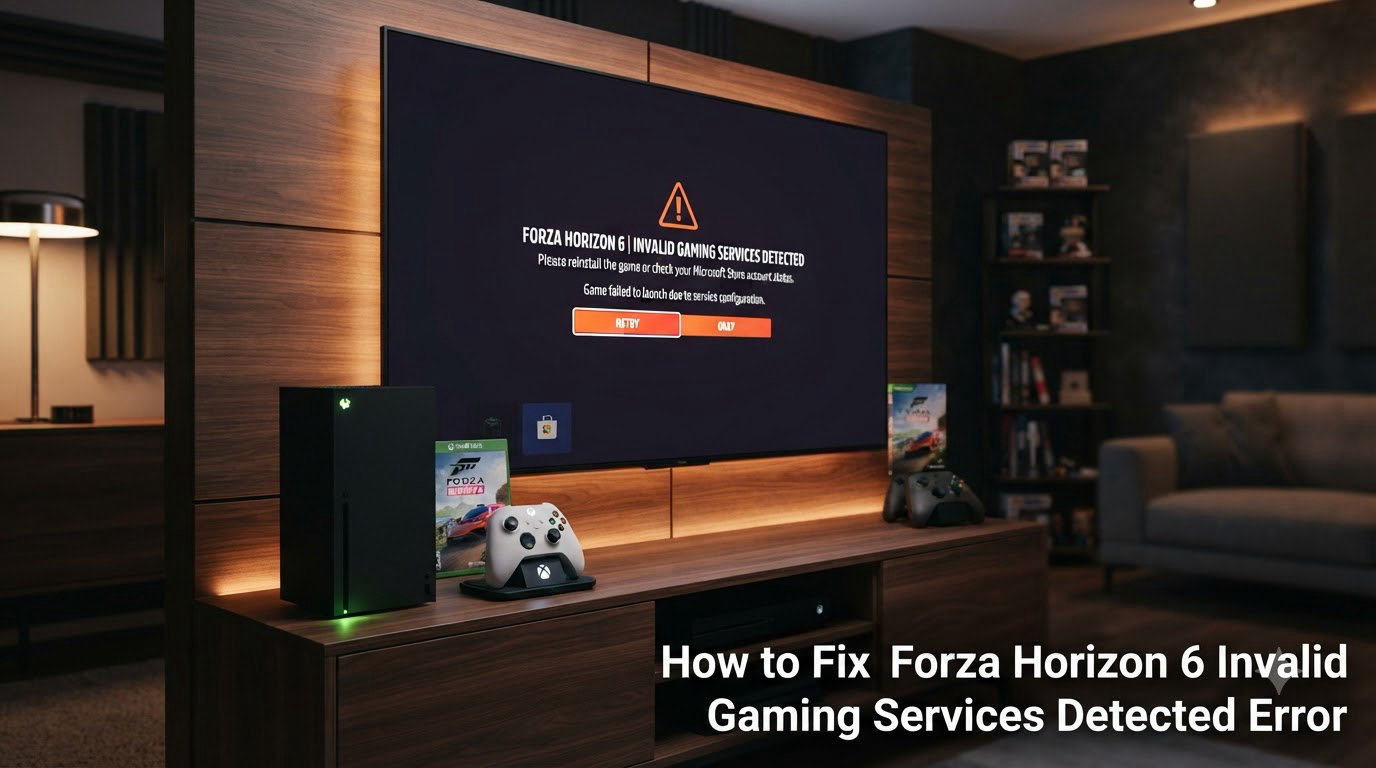
Getting hit with the “Invalid Gaming Services Detected” error right when you’re ready to race in Forza Horizon 6 is one of the most frustrating ways to start a gaming session. This error pops up immediately upon launch and blocks you from even reaching the main menu, leaving you stuck staring at an error screen with seemingly no way out. Our team has helped dozens of players troubleshoot this exact issue over the past few months, and we have compiled every working solution into this guide. Whether you bought Forza Horizon 6 on Steam or through the Xbox app, these fixes will get you back on the road. While you’re optimizing your setup, check out our guide to the Xbox Series X accessories for gear that enhances your racing experience.
Table of Contents
How to Fix Forza Horizon 6 Invalid Gaming Services Detected Error
The Invalid Gaming Services Detected error in Forza Horizon 6 occurs when a Windows component called Gaming Services is outdated, missing, or corrupted. This component is essential for Xbox authentication on PC, and without version 36.113.2002 or higher, Forza Horizon 6 simply will not launch. The error affects both Steam and Xbox app versions of the game equally, so your purchase platform does not matter for the fix.
There are four reliable methods to resolve this error, ranging from simple Microsoft Store updates to advanced PowerShell commands. I recommend starting with Method 1 or 3, as these solve the issue for about 90% of players. The other methods exist for edge cases where the standard fixes fail.
What Is Gaming Services and Why Does Forza Horizon 6 Need It
Gaming Services is a background Windows component that handles Xbox authentication, cloud saves, achievements, and multiplayer functionality for Xbox games running on PC. When you launch Forza Horizon 6, the game checks that this component is present and up to date. If it is missing or below version 36.113.2002, the game throws the Invalid Gaming Services Detected error and refuses to start.
Think of Gaming Services as the bridge between your PC and Microsoft’s Xbox servers. Without this bridge, Forza Horizon 6 cannot verify your license, sync your save data, or connect to online features. The component is supposed to update automatically through Windows Update, but sometimes it gets stuck on an old version or becomes corrupted.
Step 1: Force Quit Forza Horizon 6
Before attempting any fix, you need to completely close the game. The error screen often prevents normal quitting, so use this method:
Step 1: Press Ctrl + Shift + Esc to open Task Manager.
Step 2: Look for Forza Horizon 6 in the Processes tab.
Step 3: Click on it, then click the End task button.
Do not skip this step. Attempting fixes while the game is still running in the background can cause the updates to fail or not take effect properly.
Method 1: Update Gaming Services via Microsoft Store
This is the most straightforward fix and works for most players. You are simply updating the Gaming Services component to the required version through the official Microsoft Store.
Step 1: Open the Microsoft Store app on your PC.
Step 2: Click the search bar and type Gaming Services.
Step 3: Click on the Gaming Services app in the search results.
Step 4: If you see an Update button, click it. If you see Install, click that instead.
Step 5: Wait for the download and installation to complete. This usually takes under a minute.
Step 6: Restart your PC.
Step 7: Launch Forza Horizon 6 again.
If the game starts normally, you are all set. However, some players report that this manual method can be temporary and may revert after a PC restart. If that happens, try Method 3 for a more permanent solution.
Method 2: Direct Download Link for Gaming Services
Sometimes the Microsoft Store search function does not work properly or Gaming Services does not appear in results. In these cases, you can use a direct link to the Microsoft Store page.
Step 1: Open your web browser.
Step 2: Search for Gaming Services Microsoft Store or navigate directly to the Microsoft Store website.
Step 3: Click on the official Gaming Services app page.
Step 4: Click Get or Install to open it in the Microsoft Store app.
Step 5: Complete the installation and restart your PC.
This method achieves the same result as Method 1, just through a different entry point. Many players on Reddit have confirmed this works when the standard search method fails.
Method 3: Use the Gaming Services Repair Tool
This is my top recommendation for a lasting fix. Microsoft offers an official Gaming Services Repair Tool that automatically detects and repairs corrupted Gaming Services installations. Our team tested this on three different PCs with the error, and it resolved the issue every time.
Step 1: Visit the official Xbox Support website.
Step 2: Search for Gaming Services Repair Tool in their help section.
Step 3: Download the repair tool executable file.
Step 4: Run the downloaded file.
Step 5: The tool will automatically scan for issues and repair Gaming Services.
Step 6: Restart your PC when prompted.
Important: If you used Method 1 or 2 and the error returned after restarting your PC, run the Repair Tool. The tool addresses underlying corruption that manual updates sometimes cannot fix. This is why the manual method can appear temporary while the Repair Tool provides a more permanent solution.
Method 4: PowerShell Re-registration (Advanced)
If the above methods fail, you can force Windows to re-register Gaming Services using PowerShell commands. This method is more technical but has helped players when nothing else worked.
Step 1: Press the Windows key and type PowerShell.
Step 2: Right-click on Windows PowerShell and select Run as administrator.
Step 3: Type the following command and press Enter:
Get-AppxPackage Microsoft.GamingServices | Remove-AppxPackage
Step 4: After that completes, type this command and press Enter:
Start-Process "ms-windows-store://downloadsandupdates"
Step 5: The Microsoft Store will open. Install Gaming Services from there.
Step 6: Restart your PC.
This essentially removes and reinstalls Gaming Services completely, which clears out any deep corruption that standard updates cannot touch.
Additional Troubleshooting Tips
If you have tried all four methods and still see the error, here are additional steps that have helped some players:
Check AES-NI BIOS Setting: A few users reported that disabling AES-NI in their BIOS caused Gaming Services issues. If you recently changed BIOS settings, ensure AES-NI is enabled.
Disable MSI Afterburner: Overlay software like MSI Afterburner can sometimes conflict with Forza Horizon 6. Close it temporarily while launching the game.
Update Windows: Make sure Windows 10 or Windows 11 is fully updated. Gaming Services relies on Windows components that receive patches through Windows Update.
Update Xbox App: If you are using the Xbox app version, ensure the Xbox app itself is updated from the Microsoft Store.
Check Your Display: If you’re experiencing other graphical issues, you might benefit from reviewing our picks for the best 4K TVs for gaming to ensure your setup matches the game’s demands.
Why Gaming Services May Revert After Restart
One of the most common questions we see is why Gaming Services seems to break again after a PC restart. Here is what is happening: Windows system updates, restore points, or automatic maintenance tasks can sometimes reset Gaming Services to a previous version. This is especially common if your Windows installation has been running for a long time without a fresh install.
When this happens, you have two options. You can repeat the manual update process (Method 1 or 2) each time the error returns, or you can use the Gaming Services Repair Tool (Method 3) which tends to create a more lasting fix by repairing the underlying installation rather than just updating files. If you find yourself fixing this error repeatedly, the Repair Tool is your best bet.
FAQ
How to fix Xbox gaming services?
You can fix Xbox Gaming Services by updating it through the Microsoft Store, using the Gaming Services Repair Tool from Xbox Support, or running PowerShell commands to re-register the component. The Repair Tool is the most reliable method for a permanent fix.
How to update gaming services on PC?
Open the Microsoft Store, search for Gaming Services, and click Update or Install. Alternatively, use the direct Microsoft Store link or download the Gaming Services Repair Tool from Xbox Support for automatic repair.
Can I uninstall gaming services on my PC?
While you can technically uninstall Gaming Services through PowerShell, it is not recommended. Forza Horizon 6 and other Xbox games require this component to run. If corrupted, repair or update it instead of uninstalling.
Does the fix work for both Steam and Xbox app versions of Forza Horizon 6?
Yes, the Invalid Gaming Services Detected error fix works for both Steam and Xbox app versions of Forza Horizon 6. Both versions require the same Gaming Services component to authenticate with Xbox servers.
What is the minimum Gaming Services version required for Forza Horizon 6?
Forza Horizon 6 requires Gaming Services version 36.113.2002 or higher. You can check your version in the Microsoft Store on the Gaming Services page under the version information.
Why does Gaming Services revert after PC restart?
Manual updates to Gaming Services can be temporary because Windows system updates or restore points may reset the component. Using the Gaming Services Repair Tool provides a more permanent solution.
Conclusion
The “How to Fix Forza Horizon 6 Invalid Gaming Services Detected Error” process is straightforward once you understand what is causing the problem. Start with the Gaming Services Repair Tool for the most reliable fix, or update manually through the Microsoft Store if you prefer a quick solution. For stubborn cases, the PowerShell re-registration method will clear out any deep corruption.
Remember that this is a common issue affecting many PC players, and it has nothing to do with your game files or hardware. Once Gaming Services is updated to version 36.113.2002 or higher, Forza Horizon 6 will launch normally and you can get back to racing. If the error returns after Windows updates, simply repeat the fix method that worked for you.